Append Node
- Category: General
- Edition: All editions
- Output type: Positions
- Typical place in a graph: where several placement branches join before one spawn or position output
Append joins 2 to 100 position sets into one list for spawning. Every point is preserved in input order, including overlapping points, so you can send several placement branches into one output without changing their layouts.
When to use it
- Join separate tree, rock, grass, or prop placement branches before one output.
- Combine hand placed points with a procedural Scatter result.
- Merge position sets made with different spacing, density, masks, or transformations.
- Keep several point generators readable as separate graph sections, then collect them at the end.
- Not for removing points that are too close or duplicated. Use Thin Out after Append when the combined sets need spacing checks.
- Not for blending height or mask values. Use Combine for height and mask textures.
Inputs
| Slot | Type | Required | What to connect |
|---|---|---|---|
| Input 0 to Input 99 | Positions | No | Position sets from Scatter, Points, Select Position, a spline workflow, or another position node. Input Count controls how many slots exist. Empty inputs are ignored. Dynamic input slots cannot carry individual hover tooltips. |
Outputs
| Slot | Type | What it holds |
|---|---|---|
| Output | Positions | Every connected position set copied into one list. Input 0 comes first, then Input 1, and so on. Points keep their positions and validity. Overlapping points remain separate entries. |
Properties
| Property | Default | Range | What it does on the terrain |
|---|---|---|---|
| Input Count | 2 | 2 to 100 | Sets how many position inputs the node shows. Raise it to add more placement branches. Lowering it removes the highest numbered slots and any connections attached to them. |
Common properties
| Property | What it does |
|---|---|
| Id | The node's unique name in this graph, shown for reference. You cannot edit it. Scripts and the AI workflow CLI use it to find the node. |
| Split Execution | Lets this node run over several frames when Allow Split Execution is on in the graph settings. Append copies all connected sets in one step, so splitting only adds a short pause around it; leave it off. |
| Bypass | Skips the join and passes Input 0 to Output. Every other connected input is ignored while bypass is on. |
What Append preserves
Append copies the position samples; it does not recalculate or filter them. Each point keeps its position and validity flag. The node also preserves the order of the input sets and the order of points inside each set.
If two inputs contain a point at the same position, the output contains both points. A later tree, object, or detail output can therefore spawn two instances in the same place. Use Thin Out when you want the branches to compete for space.
Examples
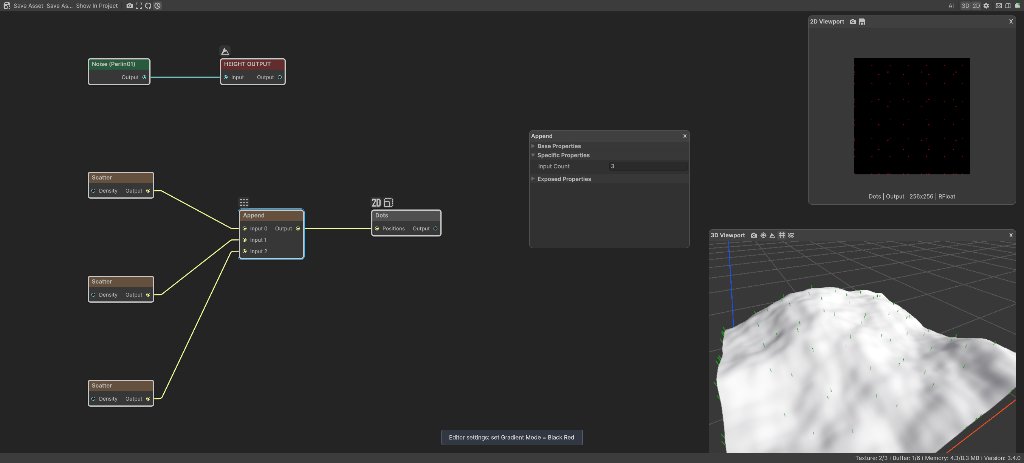
The sample graph uses three Scatter nodes with different spacing and seeds. Append feeds Dots for the 2D preview. A separate Noise feeds Height Output so the 3D viewport shows the combined positions over terrain. The biome is 1024 by 1024 meters.
Two connected inputs
| Property | Value |
|---|---|
| Input Count | 2 |
| Scatter 1 Spacing | 160, 160 meters |
| Scatter 2 Spacing | 220, 220 meters |
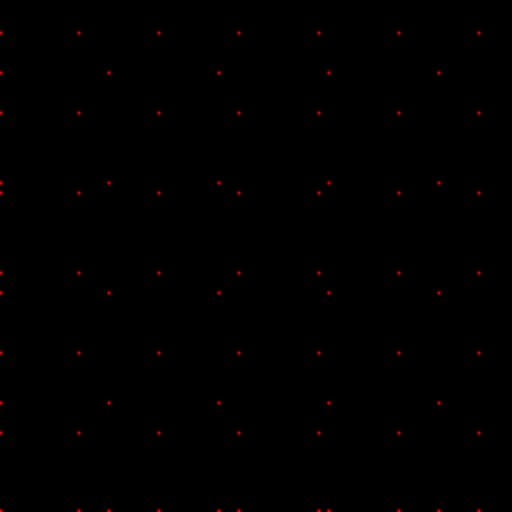
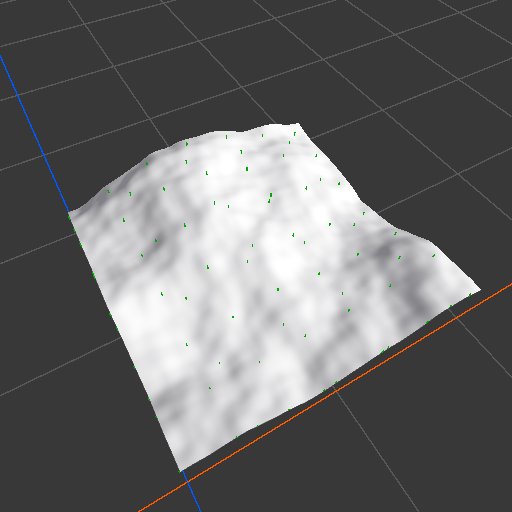
Both regular point patterns appear in one output. Append does not shift either pattern or make one replace the other.
Bypass: Input 0 only
| Property | Value |
|---|---|
| Bypass | On |


Bypass forwards only Input 0. The points from Input 1 disappear from the Dots preview. Turn bypass off to restore the full joined set.
Three connected inputs
| Property | Value |
|---|---|
| Input Count | 3 |
| Scatter 3 Spacing | 300, 300 meters |
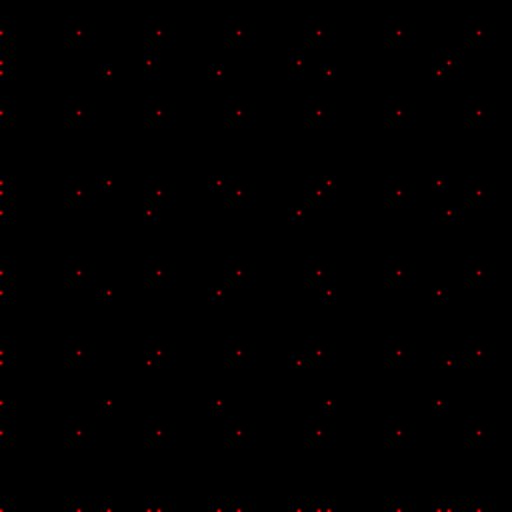
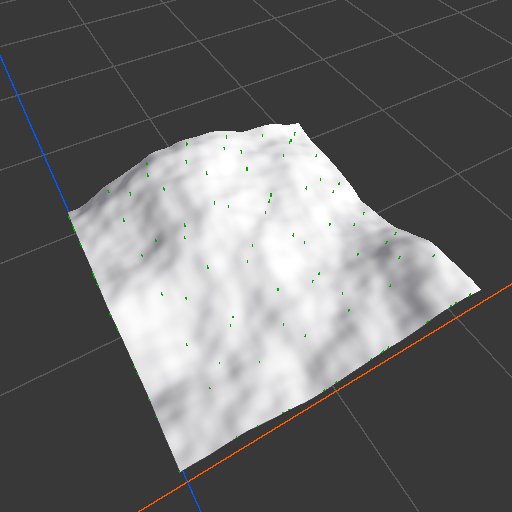
Raising Input Count adds Input 2. Connecting the third Scatter adds its wider pattern without changing the first two sets.
Recipes
- Trees from several habitats: forest Scatter → Append, riverside Scatter → Append, cliff Scatter → Append → Tree Output.
- Procedural plus hand placed: Scatter → Append, Points → Append → Object Output.
- One spacing pass after several branches: several position generators → Append → Thin Out → output. Thin Out resolves points that land too close after the join.
- Inspect the result in 2D: Append → Dots at a low absolute resolution. The
positions-in-2dAI workflow recipe explains this preview technique.
Tip
Keep each placement rule in its own graph section, then append them near the output. This makes it easier to tune or disable one habitat without disturbing the others.
Note
Append does not remove duplicates. Two points at the same coordinates remain two output entries and may create overlapping instances.
Warning
Lowering Input Count deletes the removed slots and their edges. Undo immediately if you lower it by mistake.
Performance
Append runs on the GPU and copies every connected position sample once. Cost grows with the total number of points across all inputs, not with the number of empty slots. Split Execution does not divide the copy over several frames.
Related nodes
- Scatter: creates clustered position sets from spacing and density.
- Points: creates a position set from points you place directly.
- Thin Out: removes positions that are too close after sets are joined.
- Split Positions: separates one position set into several outputs instead of joining several sets.
- Dots: turns positions into a mask so you can inspect them in the 2D viewport.
For AI agents
- Type name:
AppendNode(use withvista_graphitor_node_addandvista_reference_node --type). - Dynamic input slot ids are
0throughinputCount - 1. Output =100. - Property for
vista_graphitor_node_set:inputCount(integer, 2 to 100). Changing it rebuilds the input slots and reports any removed edges. - Inputs and output are Buffer slots carrying position samples. Empty inputs are skipped.
- Output order is Input 0, Input 1, and onward. Point order inside each input is preserved.
- Bypass forwards Input 0 only. It does not append the other inputs.
- Append does not deduplicate, thin, sort, or move points.
- Sample graph:
Assets/_DocSamples/NodeGraphs/AppendNode_Doc.asset.