Local Procedural Biome
A Local Procedural Biome generates terrain data inside a defined region of the scene. Its Terrain Graph controls what it generates, while its anchors control where the biome contributes to the terrain.
This biome type is:
- Local — it affects a polygonal region rather than the entire world.
- Procedural — its terrain shape, textures, population, and other output come from a graph and its parameters.
Create a biome
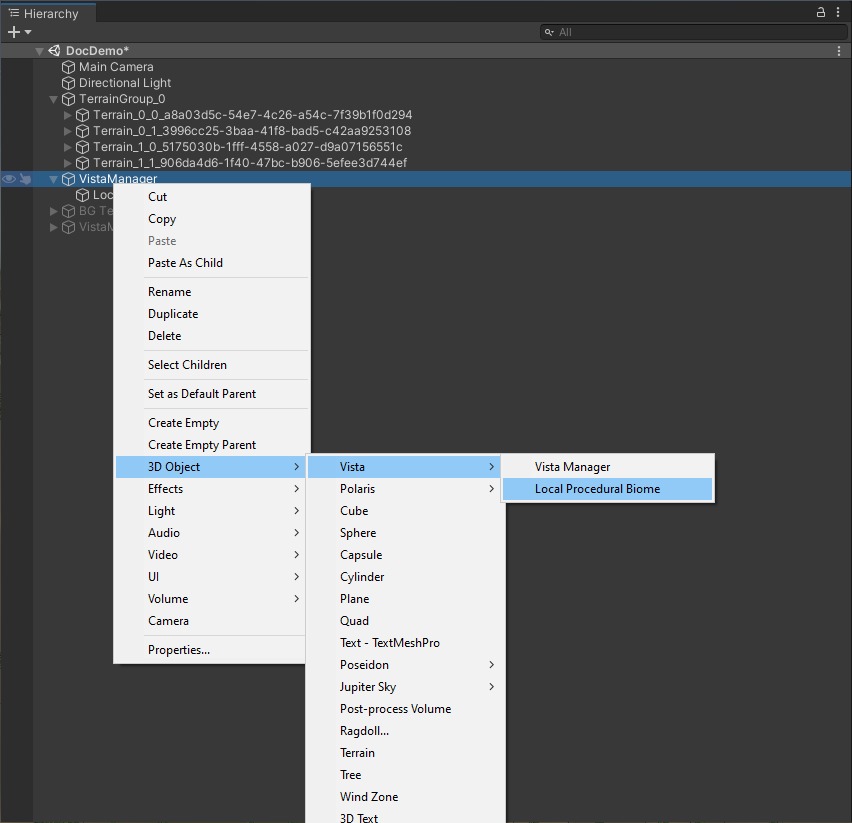
Select or right-click a Vista Manager in the Hierarchy, then select 3D Object > Vista > Local Procedural Biome.
Tip
To start from a bundled biome template, open Window > Vista > Wizard and use Create in Scene > Create Biome.
Inspector overview
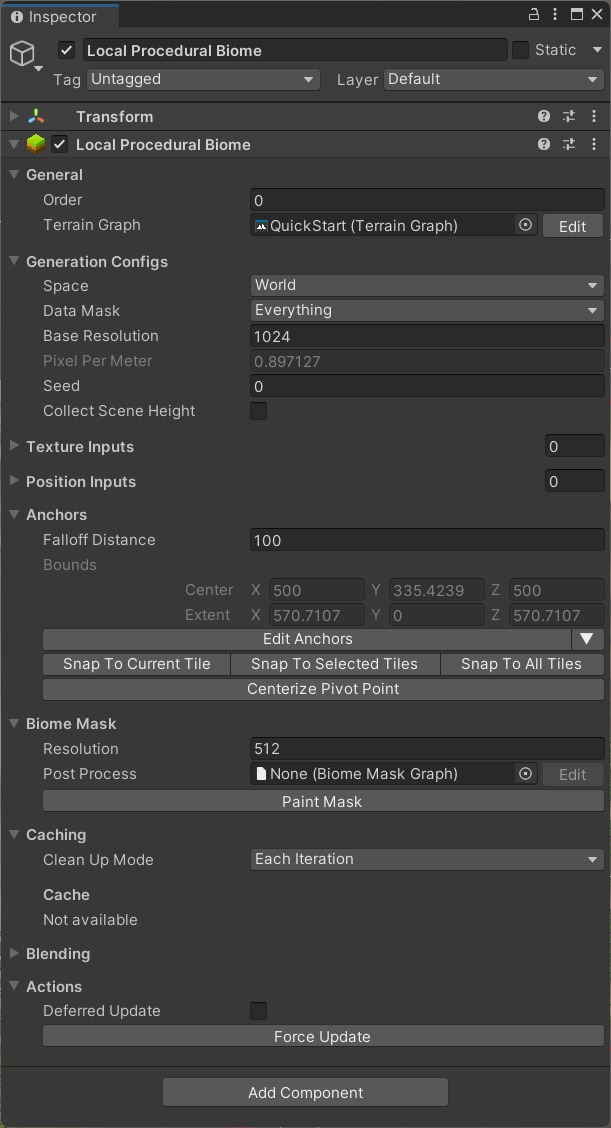
General
- Order controls when the biome is processed relative to other biomes. For a simple setup, leave biomes at the same value and arrange them in the Hierarchy.
- Terrain Graph contains the generation rules for this biome. Select Edit/Sync to open it with the biome context and synchronize its exposed properties.
- Exposed Properties displays graph properties that can be adjusted directly on this biome.
Generation Configs
- Space controls whether graph coordinates follow the biome in Local space or remain fixed in World space.
- Data Mask disables output categories the biome doesn't need to generate.
- Canvas Resolution provides the base resolution inherited by generated textures. Individual nodes can produce a different final resolution.
- Pixel Per Meter reports the current generation density from the biome size and canvas resolution. Higher density provides more detail but uses more GPU memory.
- Seed changes randomized graph output.
- Collect Scene Height supplies existing scene elevation to the graph through the
Scene Heightgraph input.
Graph inputs
Texture Inputs and Position Inputs provide external data to matching Input nodes in the Terrain Graph. Each entry needs a unique name that matches the input name used by the graph.
Anchors
Anchors define the biome boundary and its transition into surrounding biomes.
- Falloff Direction controls whether the falloff expands outside the anchors or remains within them.
- Falloff Distance controls the width of the transition area.
- Bounds displays the biome's world-space boundary.
- Show Overlapped Tiles highlights terrain tiles affected by the biome.
- Edit Anchors enables direct boundary editing in the Scene view.
- Snap To fits the biome to the current tile, selected tiles, all tiles, or a hex grid.
- Centerize Pivot Point moves the GameObject pivot to the center of the biome boundary.
See Anchors editing and Hex Grid editing.
Biome Mask
The biome mask controls where and how strongly this biome contributes.
- Resolution controls the mask texture size.
- Post Process applies a Biome Mask Graph to reshape the transition, for example with noise or a custom falloff curve.
- Edit/Sync opens the assigned Biome Mask Graph with this biome's context.
Caching
Clean Up Mode controls when Vista releases cached graph output. Use Each Iteration while actively changing the biome. Use Manually when you want to preserve this biome's cached result while working elsewhere, then clear it when the biome must regenerate.
The Cache display shows data retained from the last generation.
Blending
Blending controls how this biome combines with biomes processed before it. Separate controls are available for height, holes, textures, mesh density, and population where applicable.
Common blend modes include:
- Linear — transitions from the previous result toward this biome using its mask.
- Additive — adds this biome's values or instances to the existing result.
- Subtractive — subtracts this biome's contribution.
- Min or Max — keeps the lower or higher value.
The available modes depend on the output category. See Multi Biome Workflow for detailed blending behavior.
Actions
- Deferred Update lets you make several changes without regenerating after each one.
- Force Update regenerates the terrain through the biome's Vista Manager.