Hex Grid editing
You can use the local procedural biome to build a hexagonal grid, each biome representing a unified group of hexagons with no isolated island and no hollowed part.
In the Inspector, click on the Edit Hex Grid button, then set your hexagon radius and orientation:
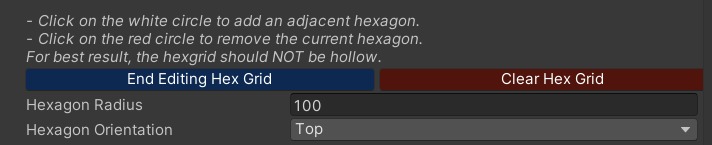
Figure: Vista for Unity hex grid editing showing in the inspector in the Unity Editor.
In the Scene View, click on the white circle to add a new hexagon or move the cursor to that position, click on the red circle to remove the hexagon at that position.
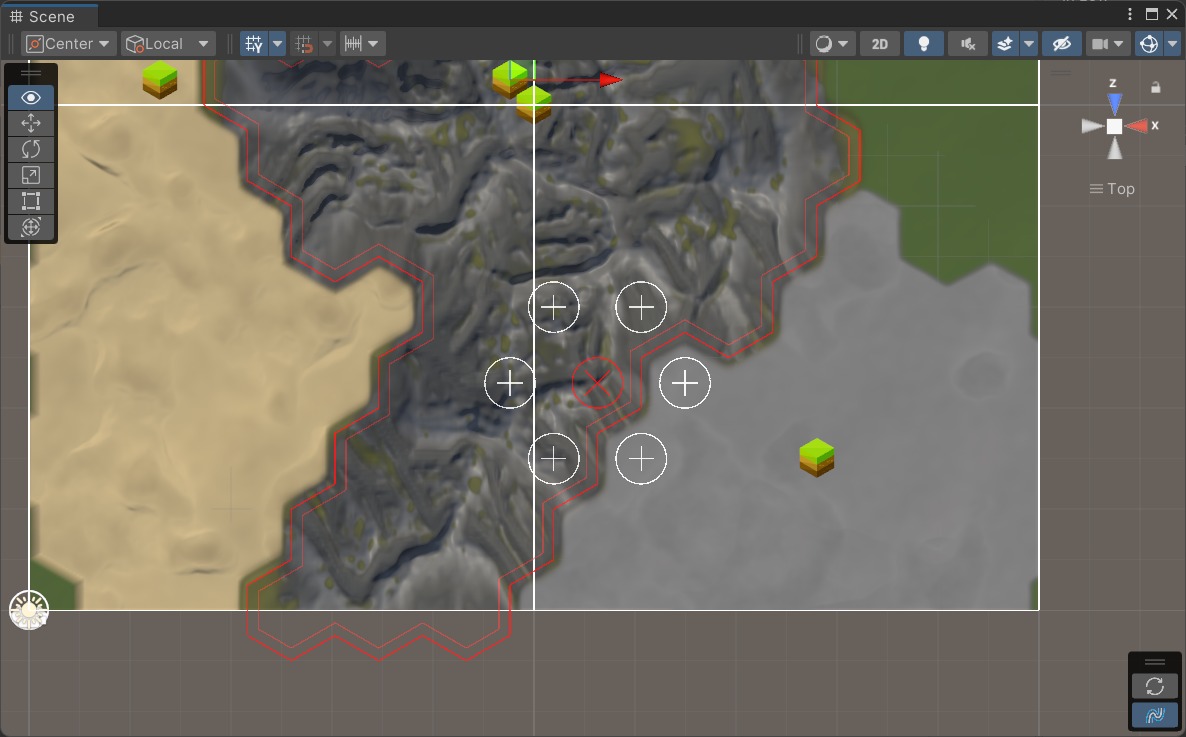
Figure: Vista for Unity hex grid editing showing in the scene view in the Unity Editor.
Once you are satisfied with the grid, click on the End Editing Hex Grid button in the Inspector.
Important: Make sure to choose reasonable values for Hexagon Radius, Falloff Distance & Falloff Direction for best result.
Note: Sometime the biome is struggle to calculate the falloff vertices at the selected direction (for example: Falloff Direction set to Outer but falloff vertices go to the inside), this can be fix by using Flip:
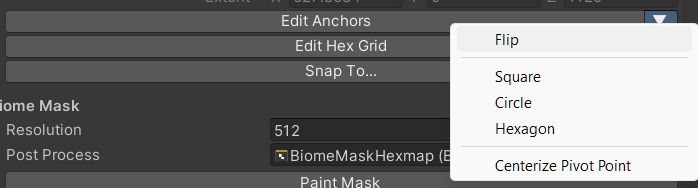
Figure: Vista for Unity hex grid editing in the Unity Editor.