Paint Color Node
- Category: General
- Edition: Vista Indie and Pro
- Output type: Color
- Typical place in a graph: before Albedo Output or another node that accepts a color texture
Paint Color creates a color texture that you paint directly in the 2D viewport. Use it when an exact hand placed color map is faster or more expressive than building the same result from procedural masks.

When to use it
- Block out stylized terrain colors by hand.
- Mark exact color regions for a custom terrain shader.
- Paint a small lookup or control texture that another color node will process.
- Sketch a color layout before replacing parts of it with procedural logic.
- Not for painting Unity Terrain layers. Use Texture Output with masks and Weight Blend for terrain layers.
- Not for a grayscale control area. Paint Mask stores one mask value per texel and is clearer for that job.
Inputs
Paint Color has no inputs. Its canvas starts black and keeps the strokes stored in the graph asset.
Outputs
| Slot | Type | What it holds |
|---|---|---|
| Output | Color texture | The painted RGB canvas. Untouched areas are black. Output alpha is opaque, including untouched and erased areas. |
Painting controls
Select Paint Color so its result appears in the 2D viewport, then paint inside that viewport.
| Action | Control | Result |
|---|---|---|
| Paint | Hold the left mouse button and drag | Blends Color over the canvas. The color's alpha controls the strength of each stroke. |
| Erase toward black | Hold Ctrl while painting | Blends black over existing color. This does not make the canvas transparent. |
| Smooth | Hold Shift while painting | Blurs existing colors under the brush and blends the softened result back into the canvas. Color is ignored. |
The two circles around the pointer show the brush profile. The outer circle is the full Radius. The inner circle is the solid center. The area between them is the soft edge controlled by Falloff.
Properties
| Property | Default | Range | What it does |
|---|---|---|---|
| Resolution | 128 | 32 to 1024 texels, in multiples of 8 | Sets the width and height of the square canvas. More texels preserve smaller strokes but enlarge the graph asset and take longer to load. |
| Radius | 0.5 | 0 to 1 of canvas width | Sets the brush radius. A value of 0.1 reaches one tenth of the canvas width from the pointer, so its full diameter covers one fifth of the canvas. |
| Falloff | 0.5 | 0 to 1 | Sets how much of the radius becomes a soft edge. At 0, almost the whole brush is solid. At 1, the stroke fades from its center to its edge. |
| Color | White | Any color and alpha | Sets the RGB color for normal painting. Alpha is stroke strength: lower alpha builds color gradually and preserves more of what is underneath. |
Common properties
| Property | What it does |
|---|---|
| Id | The node's unique name in this graph, shown for reference. You cannot edit it. Scripts and the AI workflow CLI use it to find the node. |
| Split Execution | Lets this node run over several frames so the editor stays responsive during long generations. It only works when Allow Split Execution is on in the graph settings. This node finishes in one step, so splitting only adds a short pause around it; leave it off. |
| Bypass | Skips the node. Paint Color has no input to forward, so its output is empty and nodes after it receive no color texture. |
Examples
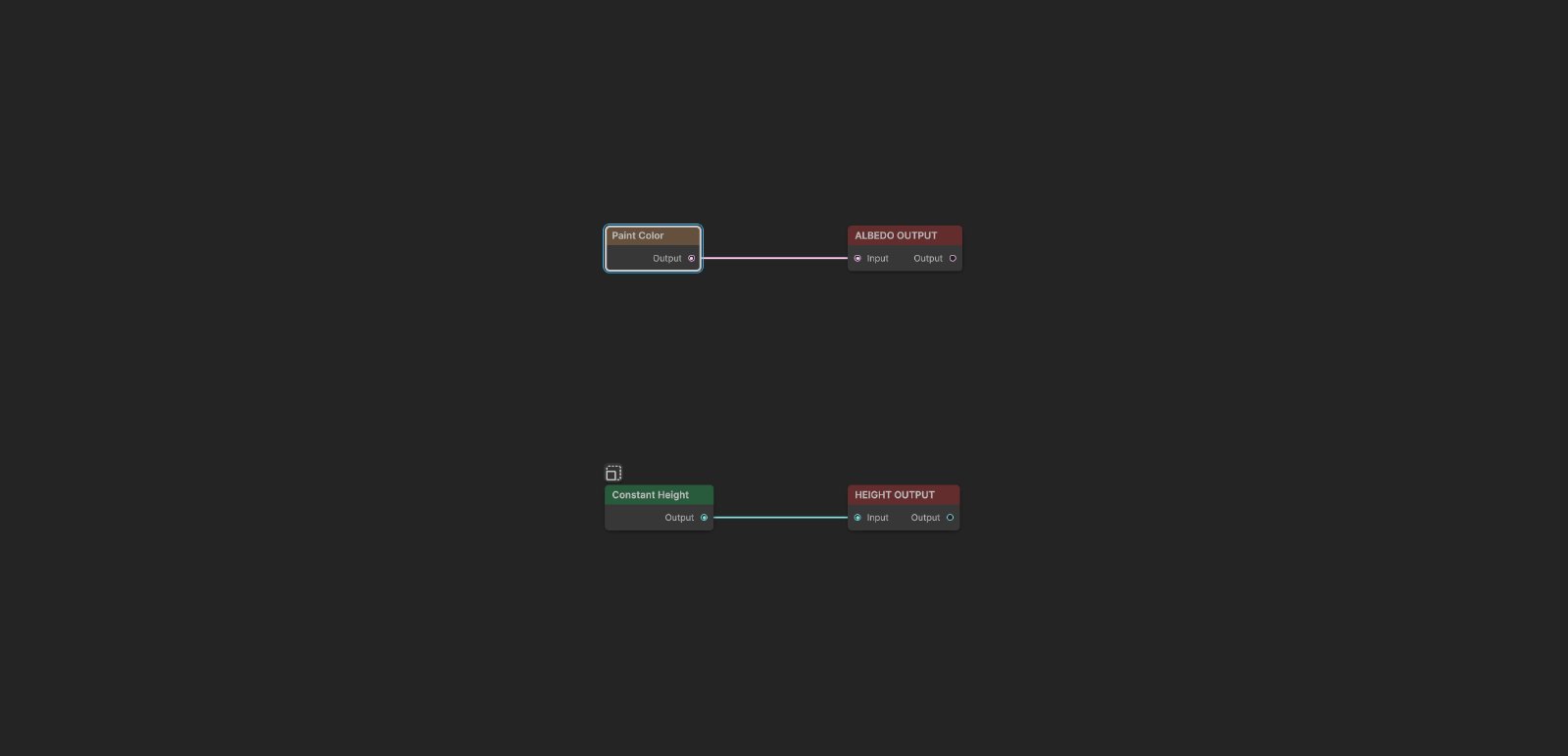
The sample graph sends Paint Color to Albedo Output. A separate Constant Height and Height Output pair gives the 3D viewport a flat surface on which to display the color.
Untouched canvas
| Property | Value |
|---|---|
| Resolution | 256 |

A new canvas is black, not transparent. This black remains wherever you do not paint.
Layered soft strokes
| Property | Value |
|---|---|
| Resolution | 256 |
| Radius | 0.08 for the narrow strokes; larger for the broad strokes |
| Falloff | 0.35 for the narrow strokes; up to 0.7 for the softer strokes |
| Color alpha | 0.75 to 0.92 |

The blue, orange, yellow, and green strokes show how colors blend where they overlap. The green circle has a black center painted with Ctrl, demonstrating that erase means paint toward black. Softer edges come from a larger Falloff.
Practical workflow
- Choose Resolution before painting.
- Select Paint Color and keep the 2D viewport large enough to place strokes accurately.
- Start with a moderate Radius and Falloff.
- Use a lower color alpha when you want to build a color slowly or mix it with existing strokes.
- Use Ctrl to correct an area back toward black and Shift to soften a rough transition.
- Save the graph. The painted texels are stored inside that graph asset.
Recipes
- Stylized terrain color: Paint Color to Albedo Output. This affects terrain systems and custom shaders that consume Vista's albedo map. Unity Terrain ignores Albedo Output and continues to use its terrain layers.
- Procedural variation over a painted layout: Paint Color and a procedural color map into Color Blend, with a mask deciding where the procedural result replaces the hand painted base.
- Reusable hand painted color: Paint Color to Set Variable, then use Get Variable wherever the same color texture is needed.
Tip
Set the resolution before making detailed strokes. Changing it later causes the stored texel count to no longer match the new canvas, so the canvas is recreated black when it reloads.
Tip
Use low alpha colors for gradual mixing. Repeated passes build toward the selected color, which gives you more control than one fully opaque stroke.
Note
Paint Color stores every canvas texel in the graph asset. A 1024 by 1024 canvas contains 16 times as many texels as a 256 by 256 canvas, so it is much heavier to save and load.
Note
Ctrl painting does not restore transparency. It blends the current color toward black, and the output remains opaque.
Warning
Paint Color has no separate clear button. Save a copy before major repainting if you may need the earlier version, and use Undo while the editor session still contains the relevant action history.
Performance
Graph execution is cheap: Paint Color copies its stored canvas to the output once. The main cost is asset size and editor loading time, which grow with the square of Resolution. Painting also updates the canvas as you drag. Use the smallest resolution that keeps the required edge detail.
Split Execution does not divide the copy into smaller work. Leave it off.
Related nodes
- Paint Mask: paints one grayscale mask instead of RGB color.
- Albedo Output: sends the painted color map to terrain systems that support Vista albedo.
- Color Blend: builds color procedurally from solid colors and masks.
- Gradient Map: converts a grayscale mask into colors with a gradient.
- Texture Output: paints an actual Unity Terrain layer from a mask.
For AI agents
- Type name:
PaintColorforvista_graphitor_node_add; runtime class:PaintColorNode. - Slot ids: Output =
100,ColorTexture. There are no input slots. - Property names for
vista_graphitor_node_set:resolution(integer),brushRadius(0 to 1),brushFalloff(0 to 1), andbrushColor(color with alpha). - Defaults:
resolution128,brushRadius0.5,brushFalloff0.5, andbrushColoropaque white. - Resolution is rounded to a multiple of 8 and clamped to 32 through 1024.
- Painting is an editor viewport interaction. Normal left mouse painting blends
brushColor; Ctrl blends black using the selected color's alpha; Shift smooths with a five texel blur under the brush. - Output alpha is written as 1 by normal and Ctrl painting. A new canvas is opaque black.
- Changing resolution does not resample existing strokes. When the stored texel count differs from the requested resolution, the recreated canvas is black.
- Bypass has no compatible input to forward, so no color texture is produced.
- Sample graph:
Assets/_DocSamples/NodeGraphs/PaintColorNode_Doc.asset.