Configure terrain settings
Select a terrain in the Hierarchy, in the Inspector you will see there are many settings:
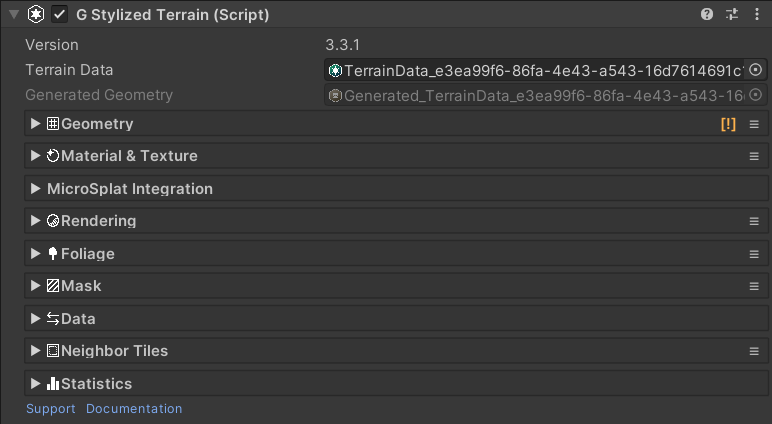
The Terrain Data and Generated Data asset is shown on top of the component.
Geometry settings:
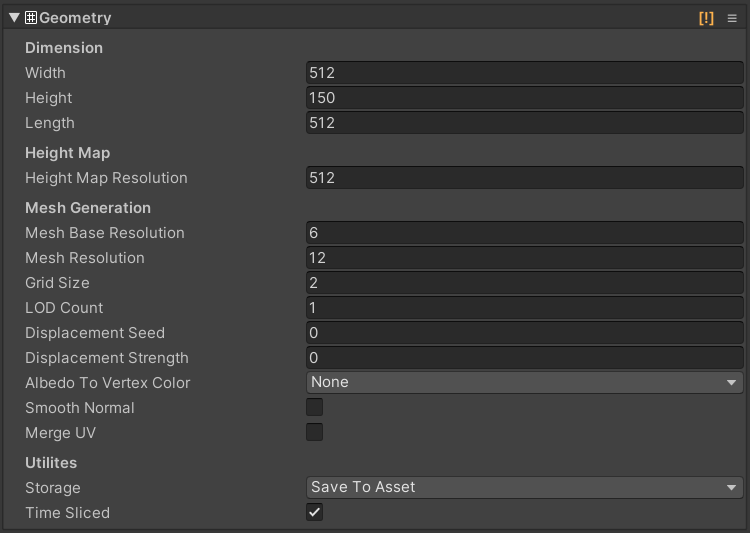
- Width: size of the terrain on X-axis in local space.
- Height: size of the terrain on Y-axis in local space.
- Length: size of the terrain on Z-axis in local space.
- Height Map Resolution: size of the height map texture in pixel.
- Mesh Base Resolution: the minimum resolution of geometry mesh.
- Mesh Resolution: the maximum resolution of a geometry mesh where it has the densest vertices distribution.
- Grid Size: how many chunks for the terrain mesh to split up on each X and Z axis. The total chunk is a square of this.
- LOD Count: the total LODs to generate. This should be 1 during editing to save some processing power, then you can try a higher value when editing is done.
- Displacement Seed: a random seed for vertex displacement.
- Displacement Strength: Strength of vertex displacement on XZ plane.
- Albedo To Vertex Color: how to fetch vertex color from albedo map.
- Storage: choose whether to write generated mesh to asset, or re-generate on enable to save some storage.
- Time Sliced: toggle time-sliced generation. If turned on, it will generate only one chunk per frame if possible. Some operations still generate all chunks at once.
- Smooth Normal: toggle smooth shading. You can also use the G channel of the Mask Map to mix between sharp and smooth shading. See Smooth Normal Painting.
- Smooth Normal Use Mask (G): if turned on, it will mix sharp and interpolated normal vectors using the G channel of the mask map.
- Merge UV: map the UV coordinates to the center point of the triangle. This way you easily create a sharp look for triangle color.
Material & texture settings:
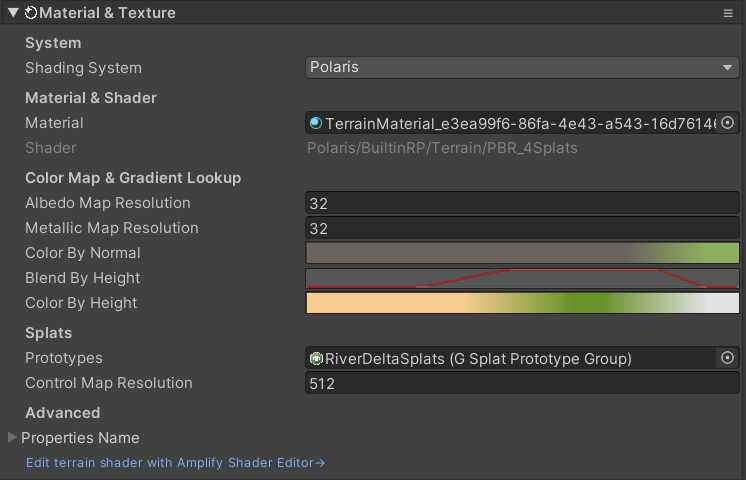
- Material: the material to render the terrain.
- Albedo Map Resolution: size of the Albedo Map in pixel. Set this to a small number to save memory if you don’t use it.
- Metallic Map Resolution: size of the Metallic Map in pixel. Set this to a small number to save memory if you don’t use it.
- Color By Height, Color By Normal: gradients to shade the terrain based on vertex height and slope. Only affect Gradient Lookup shaders.
- Color Blend: blend fraction to interpolate gradients based on vertex height. Only affect Gradient Lookup shaders.
- Splat Prototypes: a collection of terrain textures to apply onto the surface. Only affect Splat shaders. See Create Splat Prototypes Group for more detail.
- Splat Control Resolution: size of the splat control maps in pixel. Set this to a small number to save memory if you don’t use it.
- Properties under Advanced section: These define the actual properties name in terrain shaders and tell Polaris how to bind data to terrain materials. Leave it as default if you don’t use custom shaders.
Rendering settings:
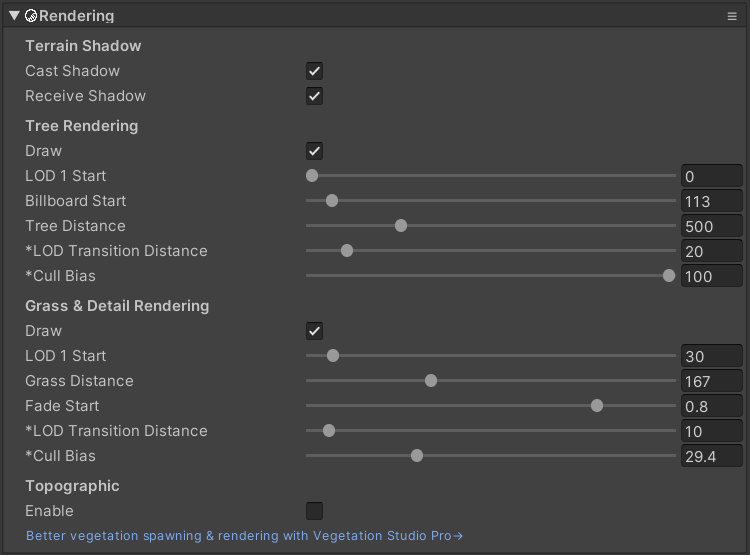
Terrain Shadow:
- Cast Shadow: should the terrain cast shadow?
- Receive Shadow: should the terrain receive shadow?
Tree Rendering:
- Draw: should it draw tree instances?
- LOD1 Start: The distance from the camera where trees start rendered as LOD1.
- Billboard Start: distance from the camera to render trees as billboards.
- Tree Distance: the maximum distance from the camera to render trees.
- LOD Transition Distance: the distance between 2 LOD where it transitions from one to other. This is a global value..
- Tree Cull Bias: adjust this property to prevent shadow pop in artifacts. This is a global value.
Grass Rendering:
- Draw: should it draw grass instances?
- LOD1 Start: distance from the camera where grass starts rendering as LOD1.
- Grass Distance: the maximum distance from the camera to render grasses.
- LOD Transition Distance: the distance between 2 LOD where it transitions from one to other. This is a global value..
- Grass Cull Bias: adjust this property to prevent grass cells from popping in. This is a global value.
Foliage settings:
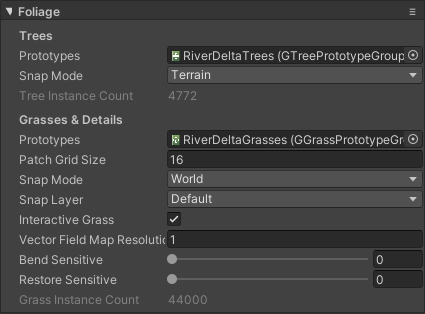
- Tree Prototypes: a collection of tree prototypes to render. See Create Tree Prototypes Group for more detail.
- Tree Snap Mode: chose to snap trees to terrain surfaces or world objects.
- Tree Snap Layer Mask: a mask to filter out world objects which trees can snap on.
- Tree Instance Count: the total number of tree instances on the terrain.
- Grass Prototypes: a collection of grass prototypes to render. See Create Grass Prototype Group for more detail.
- Grass Snap Mode: chose to snap grass to terrain surface or world objects.
- Grass Snap Layer Mask: a mask to filter out world objects which grass can snap on.
- Patch Grid Size: determine the number of patches along each X and Z axis for grass instance batching. The number of patches is a square of this. Higher patch count requires more draw calls but allows a denser field.
- Interactive Grass: Enable touch bending for grass, make them react to moving objects in the scene. See Set up Interactive Grass for more detail.
- Vector Field Map Resolution: size of the vector field map, higher value makes more precise grass bending, but costs more performance.
- Bend Sensitive: how fast grass reacts to moving objects.
- Restore Sensitive: how fast grass returns to its natural position when the moving object goes away.
- Grass Instance Count: the total number of grass instances on the terrain.
Data settings:

- Import: allow you import data from external sources like Unity Terrain Data, RAW files, etc.
- Export: allow you to export data to Unity Terrain Data, RAW files, etc.
Neighboring settings:
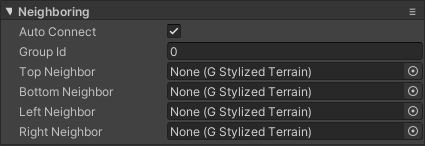
- Auto Connect: indicate that the terrain should be connected automatically to its adjacent neighbors when a new terrain is added into the scene.
- Group Id: an integer number to group terrains in the scene. This will affect how terrain tools work. For example, you can have terrains in the play area with Group Id 0, and terrain in the background with Group Id 1, etc.
- Top/Bottom/Left/Right Neighbor: connect adjacent terrain together, their geometry will be matched up.
Mask settings:

- Resolution: size of the embedded terrain mask texture. The 4 channels of this texture were used for different purpose as follow:
- R: Lock region from being edited.
- G: Sharp/smooth normals blend factor.
- B: Water source for hydraulic erosion.
- A: Custom.