Draw Mask Overlay Node
- Category: General
- Edition: Vista Pro (Real World Data)
- Output type: Color texture
- Typical place in a graph: after a node that generates a mask, temporarily, while inspecting that mask over a color map
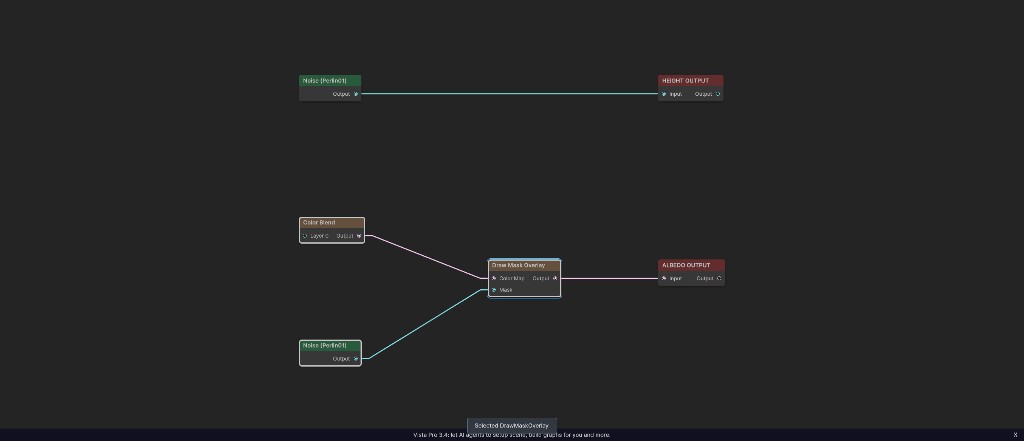
Draw Mask Overlay shows a mask as red over an existing color texture. It is a diagnostic node: black mask values leave the color map unchanged, white values become solid red, and gray values create a partial red overlay.
When to use it
- Check where a mask is active without losing the visual context of the underlying color map.
- Inspect soft transitions: darker gray adds less red, while lighter gray adds more.
- Preview a mask extracted from imagery with HSL Selector.
- Diagnose unexpected holes, spill, or weak coverage before using the mask elsewhere.
- Not for producing final terrain color. The overlay is intentionally red and its output alpha is always opaque.
Inputs
| Slot | Type | Required | What to connect |
|---|---|---|---|
| Color Map | Color texture | No | The image shown beneath the overlay. An empty input uses black. |
| Mask | Mask | No | The mask to inspect. The node reads its red channel. An empty input uses black, so no red overlay is added. |
Outputs
| Slot | Type | What it holds |
|---|---|---|
| Output | Color texture | The Color Map with the mask visualized in red. Its alpha channel is always 1. |
Properties
Draw Mask Overlay has no properties of its own.
Common properties
| Property | What it does |
|---|---|
| Id | The node's unique name in this graph, shown for reference. You cannot edit it. Scripts and the AI workflow CLI use it to find the node. |
| Resolution | Sets the output size. Relative To Main Input (default) follows Color Map when it is connected; otherwise it uses the graph's Canvas Resolution. Relative To Graph follows Canvas Resolution. Absolute sets an exact size. Absolute is limited to 32 to 4096 in Vista Pro. |
| Split Execution | Lets this node run in a separate step when Allow Split Execution is on in the graph settings. The node performs one image pass, so leave this off unless you are deliberately spreading graph work across frames. |
| Bypass | Skips the red overlay and forwards Color Map unchanged. The Mask input is ignored while bypass is on. |
How the overlay is drawn
At each texel, the node reads the mask's red channel as m and blends from the original color toward (m, 0, 0) using m as the blend amount:
output.rgb = blend(colorMap.rgb, (m, 0, 0), m)
This gives the following landmarks:
m = 0: the original color remains unchanged.m = 1: the result is solid red(1, 0, 0).0 < m < 1: red increases while green and blue are reduced, making the RGB image look like it has a translucent diagnostic overlay.
The operation does not preserve the Color Map's alpha. Output always has an alpha value of 1.
Examples
The sample uses a muted green Color Blend as the Color Map and a broad Noise pattern as the Mask.
Black mask
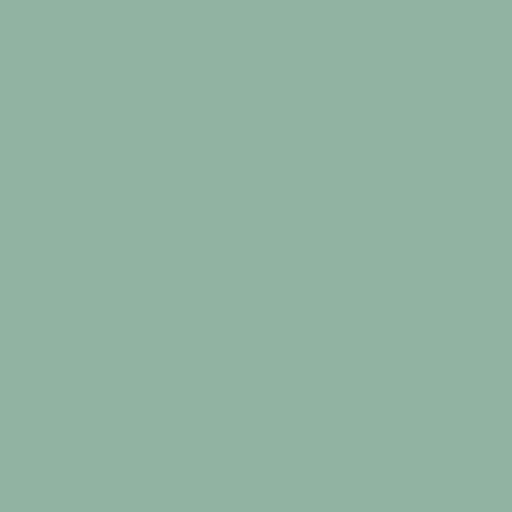
A mask value of 0 adds no overlay. This is also the result when Mask is unconnected.
Noise mask
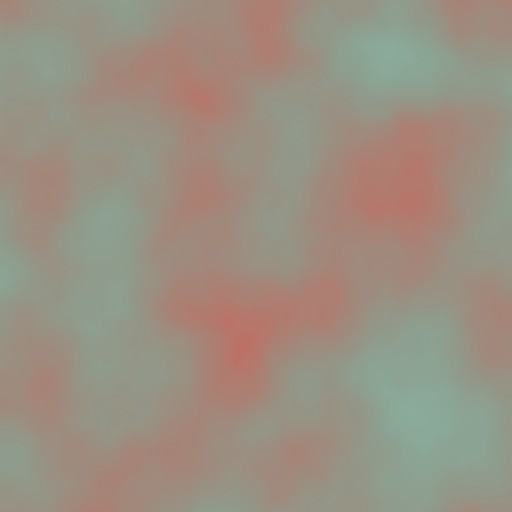
The Noise values are mostly gray, so the overlay varies gradually. Stronger mask areas look redder; weaker areas retain more of the base green.
White mask
A mask value of 1 replaces the entire color with red. If the preview is fully red unexpectedly, inspect the upstream mask for values clamped or remapped to 1.
Recipes
- Inspect an HSL selection: connect the source imagery to Color Map, connect HSL Selector's mask to Mask, and adjust the selector while watching the red coverage.
- Check a terrain region: build a readable base color map with Gradient Map or Color Blend, then overlay a Height Mask, Slope Mask, or other region mask.
- Compare before and after: toggle Bypass to switch between the original Color Map and the red diagnostic view.
- Inspect without a base map: leave Color Map empty. The mask appears red over black, although the ordinary mask preview is usually clearer for this case.
Tip
Use a subdued Color Map beneath the overlay. Highly saturated red content can make the diagnostic mask difficult to distinguish.
Note
Draw Mask Overlay changes the RGB color values; it does not place the mask in alpha or create a separate viewport layer.
Warning
Do not connect the diagnostic output to Albedo Output in a finished graph unless the red overlay is intentionally part of the terrain color.
Performance
Draw Mask Overlay performs one image pass at the chosen resolution and creates one ARGB output texture. Its cost grows with output resolution. Use the same or a lower resolution than the Color Map while diagnosing broad regions; raise it only when narrow mask edges need inspection.
Related nodes
- HSL Selector: extracts a mask from hue, saturation, and lightness ranges in a color image.
- Color Blend: builds a color map from solid colors and masks.
- Gradient Map: turns one mask into a color texture using a gradient.
- Albedo Output: sends a finished color texture to terrain after diagnostics are removed.
- RGBA Merge: stores masks in color channels when they need to be packed rather than previewed.
For AI agents
- Type name:
DrawMaskOverlayNode; node search and graph commands useDrawMaskOverlay. - Input slot
0= Color Map, ColorTexture. - Input slot
1= Mask, Mask. - Output slot
100= Output, ColorTexture. - The node has no properties of its own.
- The shader computes
lerp(colorMap.rgb, float3(mask.r, 0, 0), mask.r)and writes alpha 1. - Empty Color Map and Mask inputs use black textures.
- Resolution follows Color Map in Relative To Main Input mode. Without Color Map, it falls back to the graph resolution.
- Bypass forwards Color Map because the first input and output are both ColorTexture.
- Sample graph:
Assets/_DocSamples/NodeGraphs/DrawMaskOverlayNode_Doc.asset.