Stroke Graph
A Stroke Graph is a terrain-data graph designed for manual terrain tools. It receives the complete committed stroke as spatial input, runs once for that action pass, and produces terrain data that the Stroke Action blends into the scene.
Use a Stroke Graph for reusable effects, not for processing every mouse-move event independently.
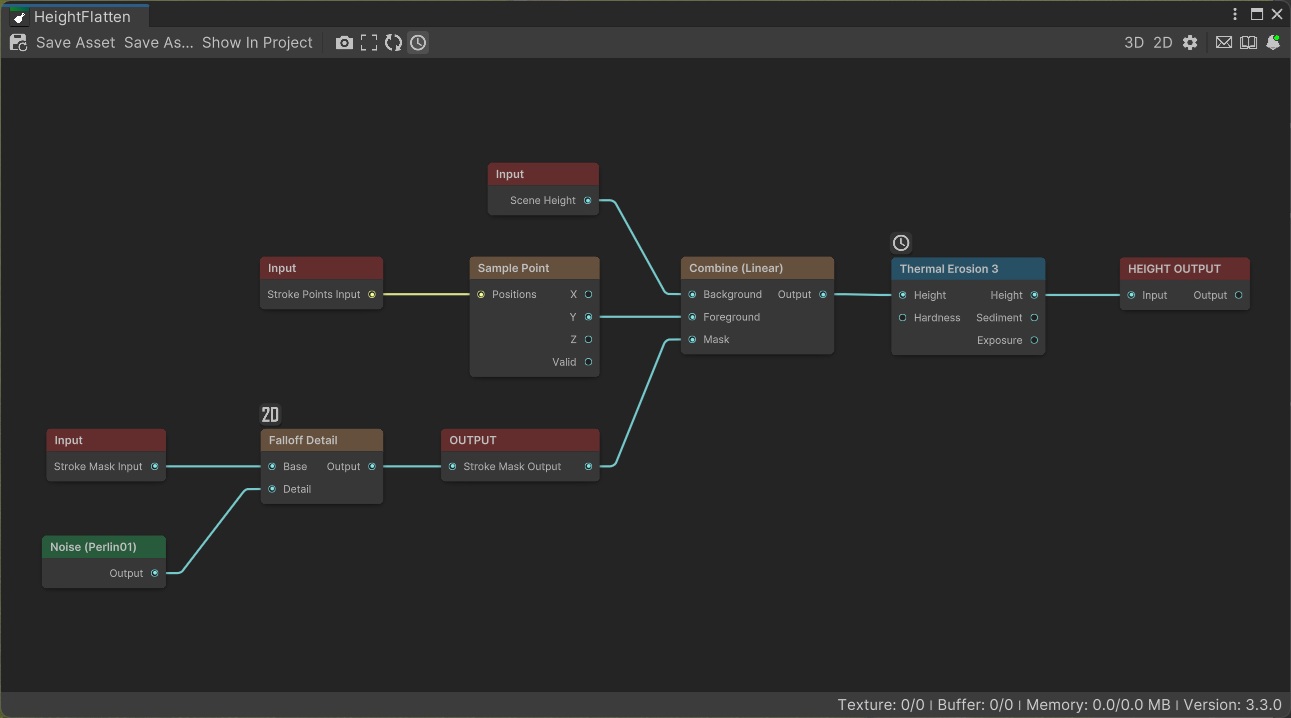
Built-in stroke inputs
Use Graph Input nodes to request only the scene data the graph needs.
- Stroke Mask Input: coverage and edge falloff produced by sweeping the brush along the path.
- Stroke Proximity Input: normalized distance from the stroke path.
- Scene Height: terrain height captured before the action runs, in normalized terrain-height space.
- Stroke Points Input: the recorded world-space stroke samples. Nodes such as Sample Point read positions from this buffer. For example, Flatten uses the first point's height as its target.
- Scene Texture Weight/<slot name>: the current weight of a terrain layer selected by the Painter for that logical input slot.
Scene Height and scene texture weights are collected on demand. If the graph doesn't request them, the Painter doesn't capture them as graph inputs.
The Brush Tip node provides:
- Intensity: a constant mask containing the current brush intensity.
- Silhouette: the current brush-tip shape and softness.
Radius remains a world-space execution argument rather than a normalized texture value.
Output terrain data
Use ordinary terrain-data output nodes for geometry channels such as height, holes, mesh density, albedo, and metallic/smoothness.
Manual tools use slot output nodes when the Painter should let the user choose the terrain identity:
- Texture Slot Output exposes a named Terrain Layer assignment.
- Tree Slot Output exposes a named Tree Template assignment.
- Detail Density Slot Output exposes a named Detail Template for Unity Terrain density.
- Detail Instance Slot Output exposes a named Detail Template for Polaris instances.
Give slots stable, descriptive names. Slots with the same direction, kind, and name share one assignment on the Painter. Detail Density and Detail Instance slots with the same name intentionally share one Detail Template selection, allowing one action to support Unity Terrain and Polaris without duplicate controls.
Control the stroke transition
By default, the Painter uses the raw Stroke Mask Input as the blend mask.
Publish a generic texture output named Stroke Mask Output to refine that transition. The action uses it as the final stroke mask instead of treating it as terrain data. This is useful for transitions based on simulation, slope, or other graph processing.
The mask should still represent the intended stroke region. Unexpected values can make the action affect too much or too little terrain.
Read an existing texture layer
Choose Scene Texture Weight from the Input node's name selector and give it a logical slot name:
Scene Texture Weight/Ground
The Painter displays Ground under Texture Inputs, where the user assigns the actual Terrain Layer. The graph receives that layer's current weight in stroke space. An unassigned input reads as black and shows a warning.
The slot name describes the layer's role, not its asset name. Matching names reuse one assignment across actions; renaming a slot requires the user to assign it again.
Paint one texture while preserving layers underneath
Consider a Convexity action that paints rock only on raised terrain features. Connecting the sparse convexity mask directly to Texture Slot Output while leaving Stroke Mask Output at its default makes the entire brush stroke participate in texture blending.
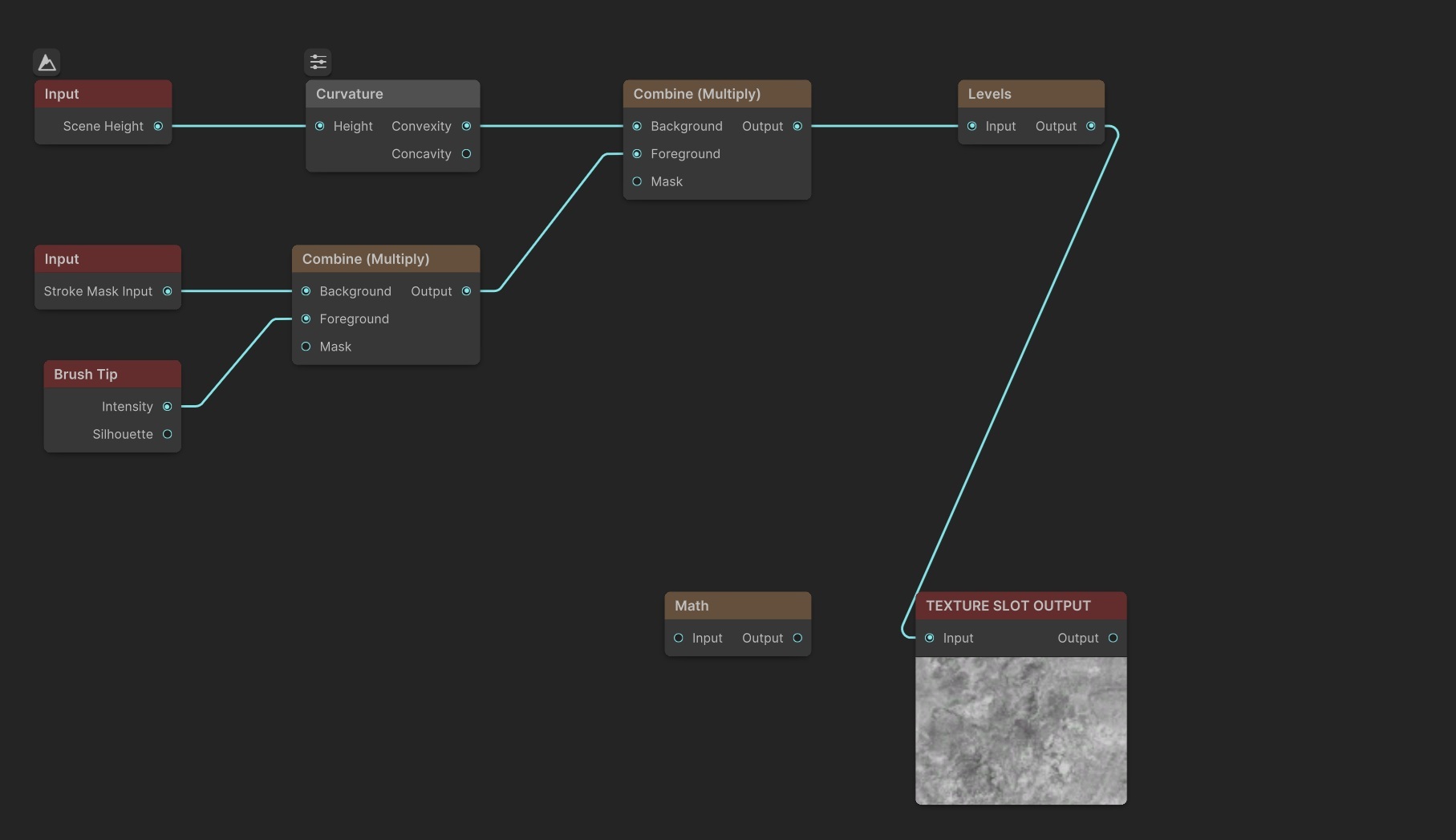
Pixels outside the rocky spots then contain no output texture weight. The existing grass is replaced by black across the stroke, with the rock texture visible only where the mask has weight.

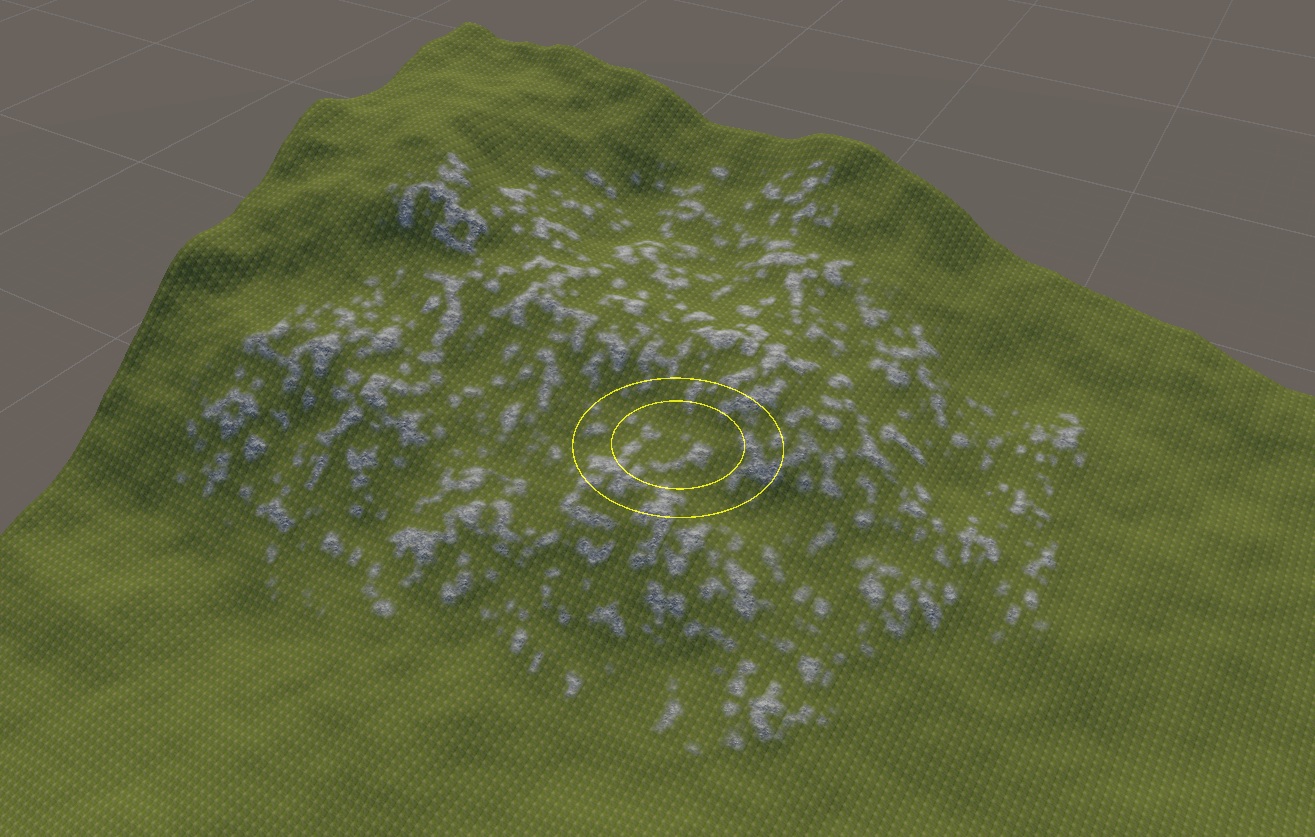
Instead, publish the convexity mask as Stroke Mask Output and connect full white to Texture Slot Output.

The convexity mask now controls where texture blending occurs. Full white supplies the selected rock layer inside those areas, while pixels outside the mask keep their existing grass texture.
Exposed properties
Vista Pro can expose graph properties for adjustment in the Painter Inspector. The Painter stores its own overrides and applies only those belonging to the selected graph when the action executes.
Use exposed properties for semantic controls such as slope thresholds, erosion settings, or target ranges. Use slot outputs for selectable terrain layers and templates; those assignments are available without exposing the underlying object property.
Graph preview context
Open a Stroke Graph through the Stroke Action's Edit button. The action supplies its sample stroke and current brush tip so stroke-specific inputs have meaningful preview data.
Opening the graph without its action host can't reconstruct that complete authoring context reliably.