Data Provider Assets
A Data Provider is a type of asset that lets you set up parameters and download real world data from a server. To create one, right click on the Project window, then Create>Vista>Data Provider:

Figure: Vista for Unity data provider assets in the Unity Editor.
Data providers can have slightly different settings depending on the data source, but overall they have the following common settings:
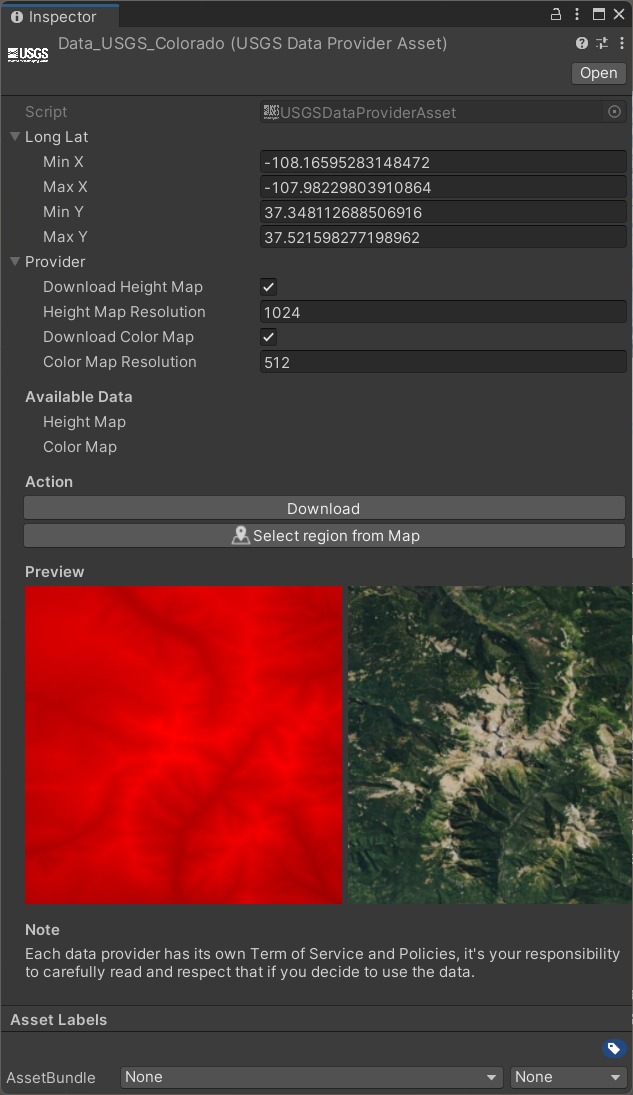
Figure: Vista for Unity data provider assets in the Unity Editor.
Long Lat: Geographic coordinates of the area, the longitude X [-180,180] and latitude Y [-90,90].
Provider: Contains data service specific properties.
Available Data: Indicate what kind of data can be available via this service. Some services only have elevation data, while some can provide both elevation and satellite imagery.
Download button: Start downloading data map from the server.
Select region from Map button: This will open up a map view to let you select a region by drawing a rectangle.
Preview: Showing downloaded data.
USGS
Providing elevation & satellite images mostly in the US.
Below are some parameters specific to USGS data source:
Download Height Map: Should it download the height map when clicking on Download?
Height Map Resolution: Size in pixels of the height map, data can be interpolated to fit in.
Download Color Map: Should it download the color map when clicking on Download?
Color Map Resolution: Size in pixels of the color map, data can be interpolated to fit in.
Open Topography
Providing elevation data from a variety of datasets that cover almost the entire world.
Below are some parameters specific to Open Topography data source:
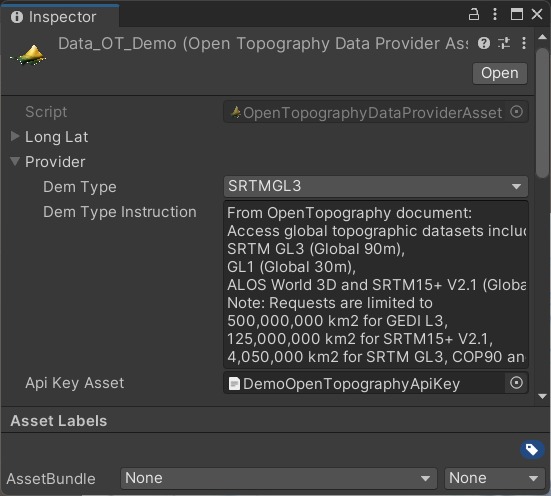
Figure: Vista for Unity open topography in the Unity Editor.
DEM Type: Select the Digital Elevation Model dataset. Detail on each dataset explained in the Dem Type Instruction.
Api Key Asset: A simple text file (.txt) containing your Open Topography API Key. This file should only contain the key without any leading or trail white space.
Custom Tile Based Providers
This feature also allows you to download tiled map images from other services that use a slippy map tiling scheme.
Note: Those tile servers usually use Web Mercator (wkid:3857) projection. See Spatial reference and data reprojection for detail.
This is mostly used for getting colored images from custom sources.
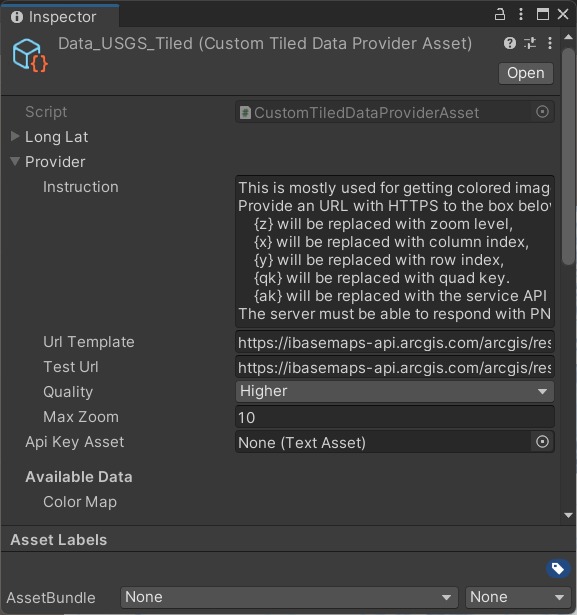
Figure: Vista for Unity custom tile based providers showing mostly used for getting colored images from custom sources in the Unity Editor.
Provide an URL with HTTPS to the Url Template box, where:
{z} will be replaced with zoom level,
{x} will be replaced with column index,
{y} will be replaced with row index,
{qk} will be replaced with a quad key.
{ak} will be replaced with the service API Key (or access token).
The x, y, z and quadkey will be calculated for you, API Key will be read from the Api Key Asset you provide.
In the example above, the Url Template is:
https://basemap.nationalmap.gov/arcgis/rest/services/USGSImageryOnly/MapServer/tile/{z}/{y}/{x}
Then the Test Url, a way to verify your url, with z=4, y=5, x=3, will be:
https://basemap.nationalmap.gov/arcgis/rest/services/USGSImageryOnly/MapServer/tile/4/5/3
You can find other parameters, such as:
Quality: Define the size of downloaded texture, this also depends on the size of selected area, the service's maximum zoom, etc.
Max Zoom: The highest zoom level the service can provide, you can find this in the service description.
Api Key Asset: A simple text file (.txt) containing your API Key for the service. This file should only contain the key without any leading or trail white space
Note: The server must be able to respond with PNG/JPG images, otherwise the operation will fail.
Set API Key Asset as default
It can be inconvenient when you have to set the API Key Asset for each data provider created. To have the file assigned automatically when you create a new data provider, do the following:
Select the Assets/PinwheelStudio/Vista - Real World Data/Runtime/Scripts/OpenTopography/OpenTopographyDataProviderAsset.cs and Assets/PinwheelStudio/Vista - Real World Data/Runtime/Scripts/CustomProviders/CustomTiledDataProviderAsset.cs script file.
Drop your API Key Asset file to the Api Key Asset slot in the Inspector.
Let it compile.
Now they will use that API Key file when you create a new provider asset.
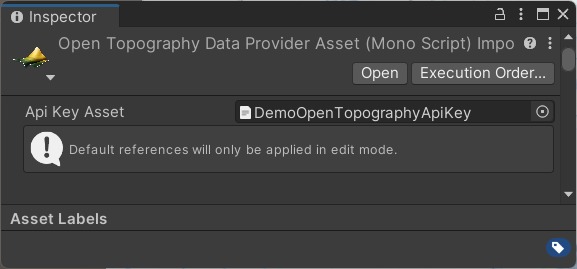
Figure: Vista for Unity set api key asset as default in the Unity Editor.
Implement custom data provider asset
You can implement your own data provider asset type to retrieve data from a custom source that will be easily integrated to the local biome or real world biome later.
To do so, you need at least 2 important scripts:
A "data provider" class that implements IRwdProvider interface which is responsible for retrieving data from the server.
A "data provider asset" class that implements DataProviderAsset base class that is responsible for serialization parameters and gives you something to select in the editor.
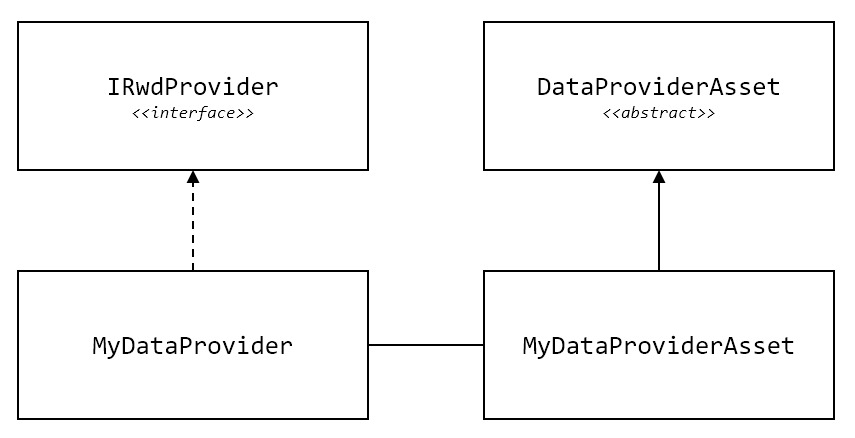
Figure: Vista for Unity implement custom data provider asset showing a "data provider asset" class that implements in the Unity Editor.
There are some example codes located at Assets/PinwheelStudio/Vista - Real World Data/Samples/CustomDataProviderAssetExample for you to get started.
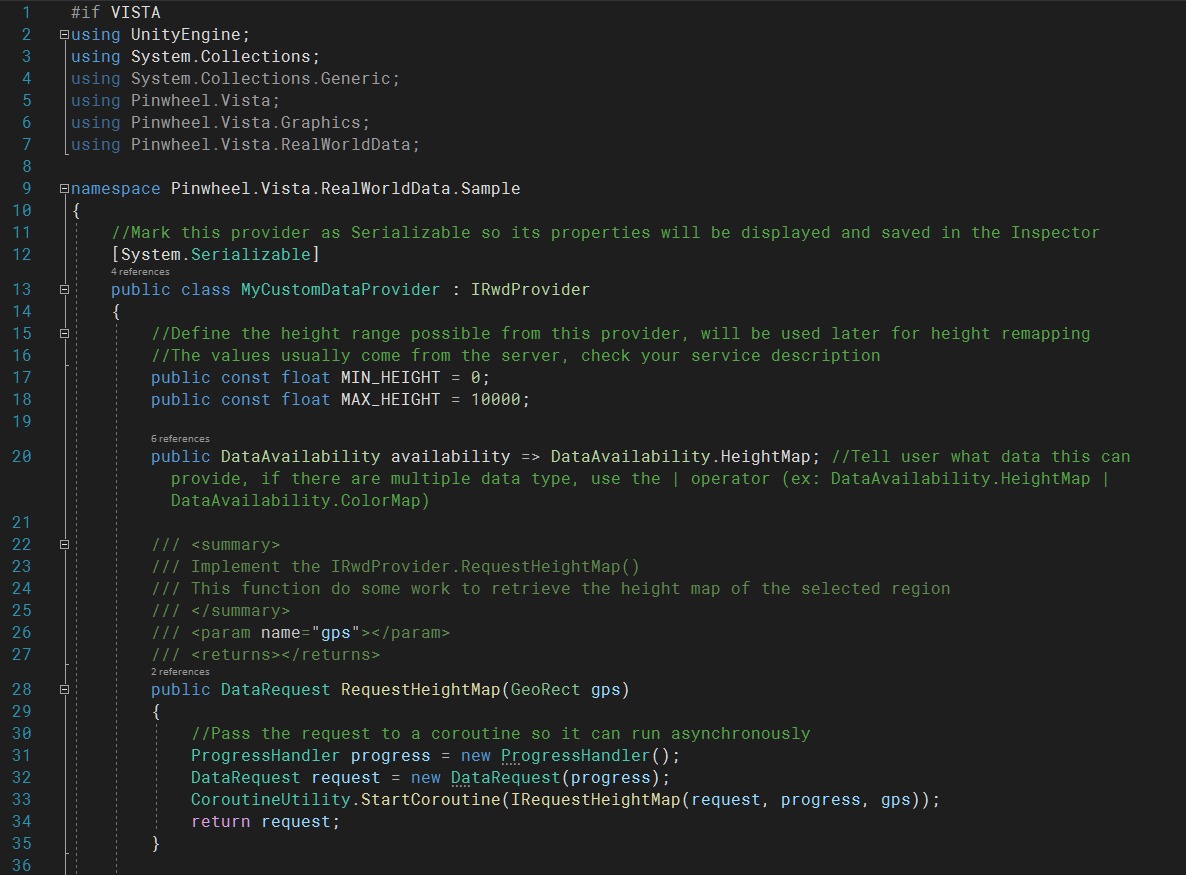
Figure: Vista for Unity implement custom data provider asset in the Unity Editor.
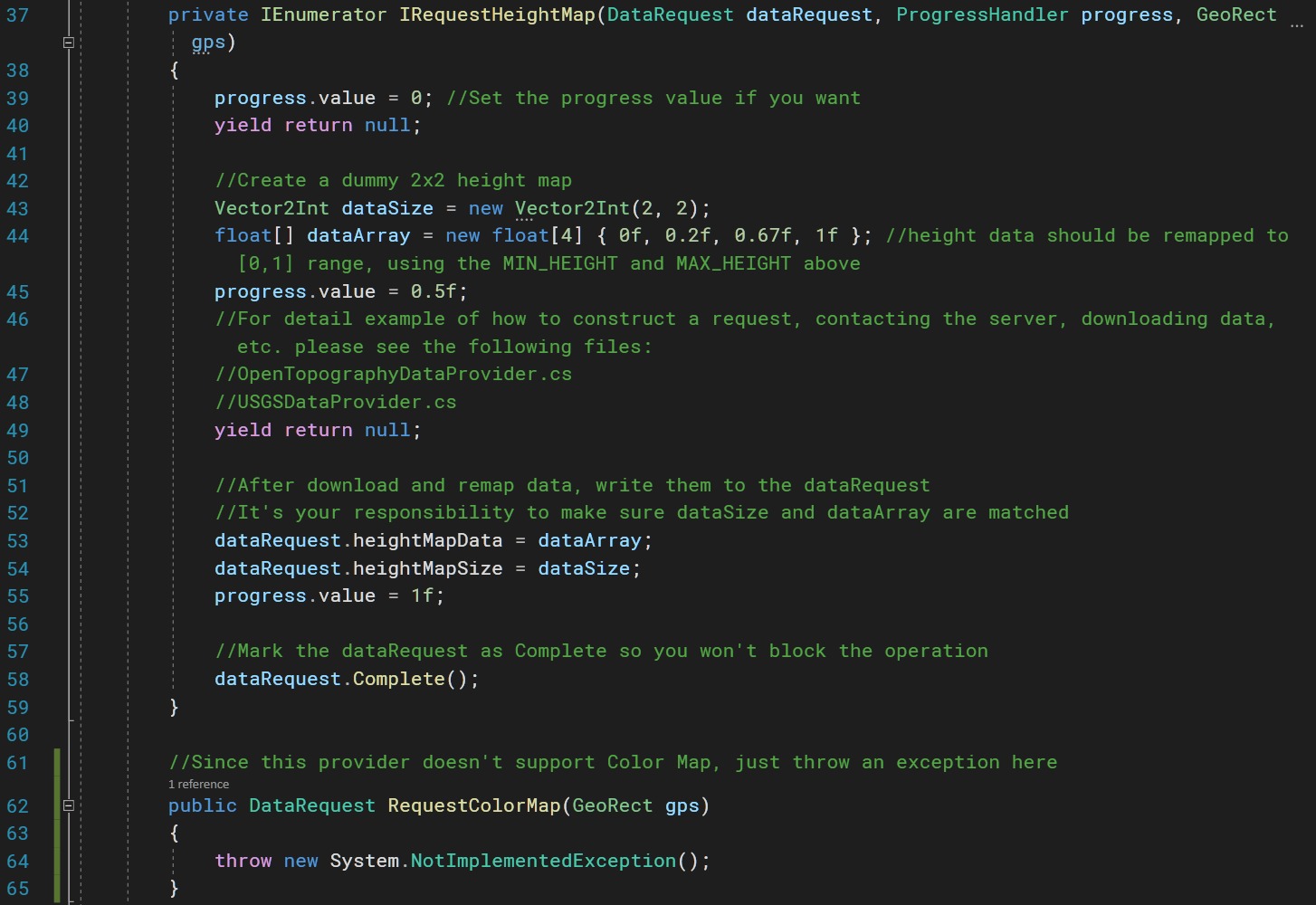
Figure: Vista for Unity implement custom data provider asset in the Unity Editor.
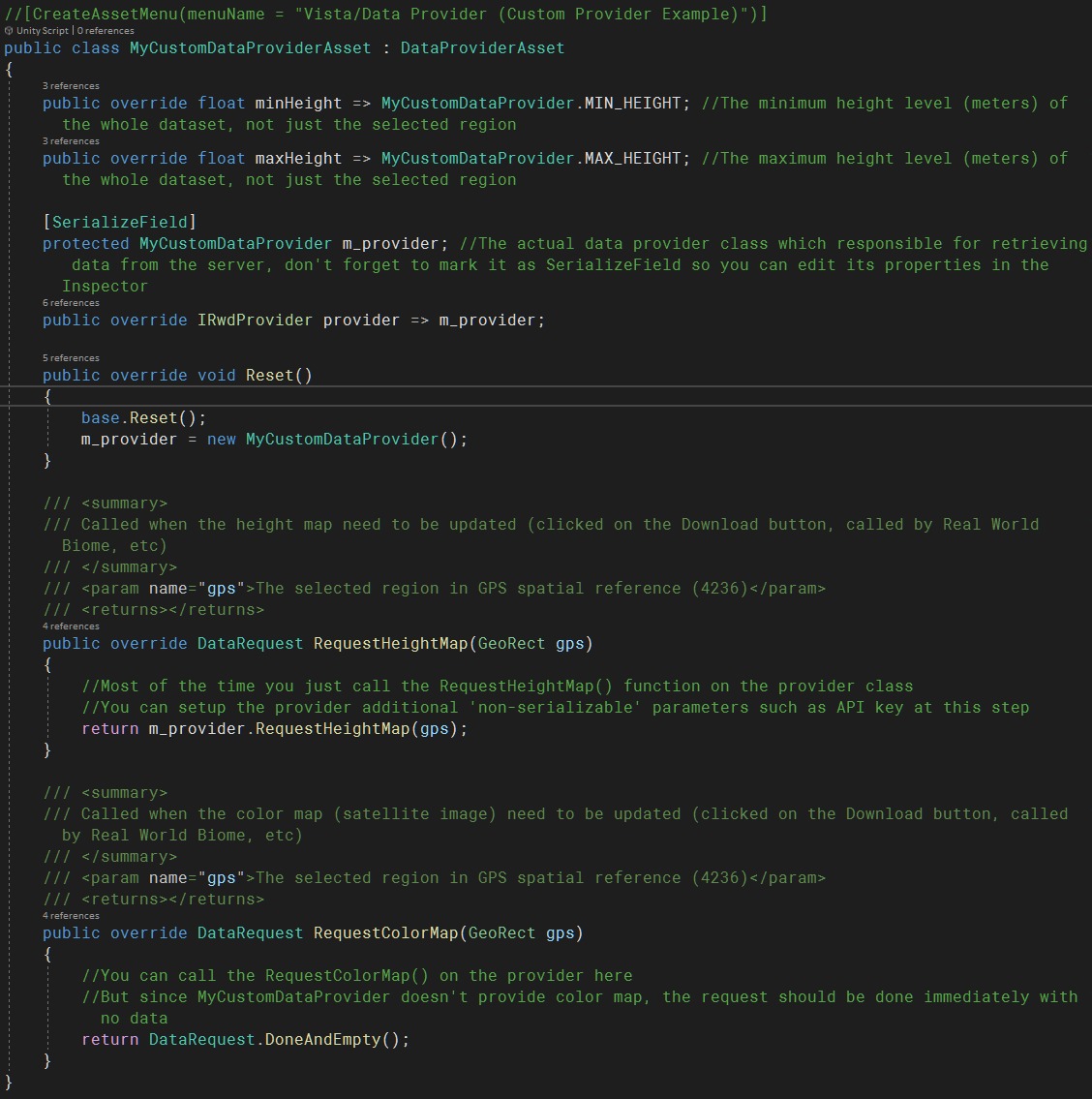
Figure: Vista for Unity implement custom data provider asset in the Unity Editor.