Import From Texture Set
This import lets you rebuild a Polaris terrain from a set of textures, such as height, color, hole, and splat control maps. Use it when your terrain data already exists as images and you want Polaris to turn those textures back into editable terrain data.
Access point
Open:
GameObject > 3D Object > Polaris > Terrain Wizard
Then go to:
Use Existing Data > Texture Set
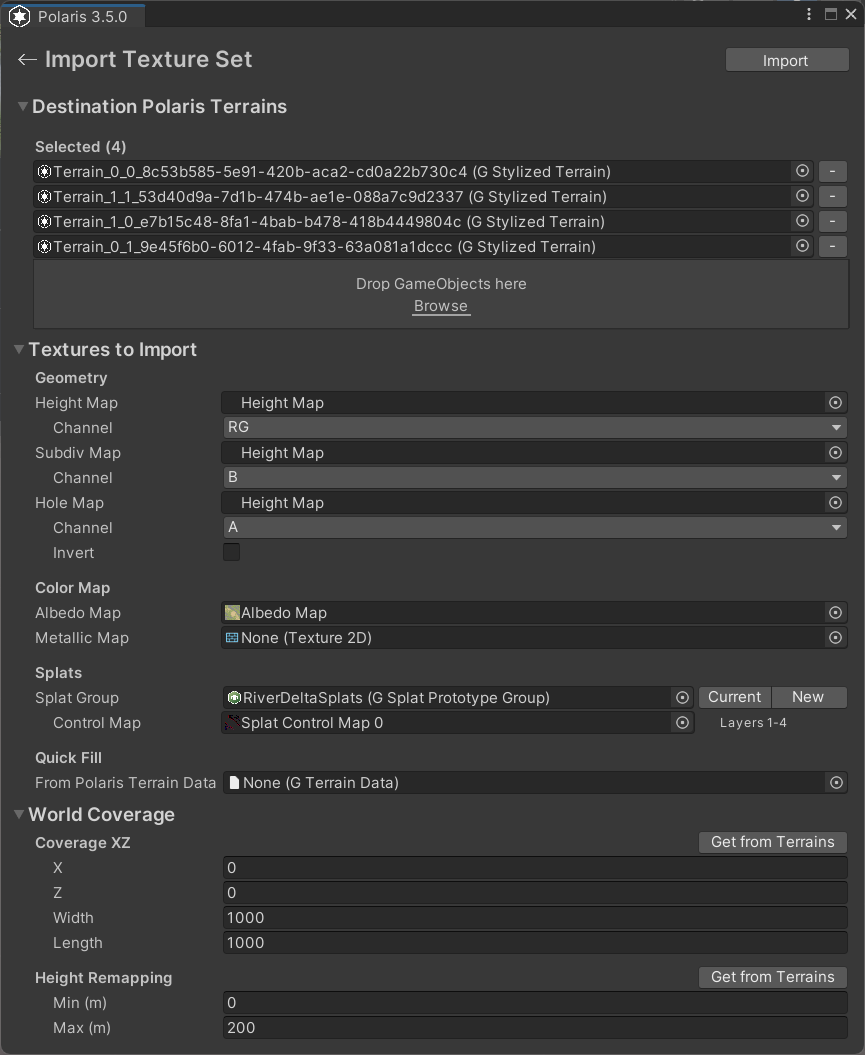
Supported source inputs
- height map
- subdivision map
- hole map
- albedo map
- metallic map
- splat control maps
Main parameters
Destination Polaris Terrains
The Polaris terrains that will receive the imported texture data.
- If the scene has no valid Polaris terrains yet, create them first.
- This path expects destination terrains before import.
Height Map
Height texture used to generate terrain elevation.
Channel
Select which color channel stores the height information.
Ris the common choice for general height maps exported from other software.RGis used for Polaris-encoded height maps.
Subdiv Map
Optional texture used for subdivision or density-related data.
Channel
Select the source channel to read from.
Hole Map
Optional texture used to cut holes into the terrain.
Channel
Select the source channel to read from.
Invert
Invert the hole interpretation if the imported result is reversed.
Albedo Map
The color map used by supported shading modes.
Metallic Map
The metallic map, where R contains metallic values and A contains smoothness values.
Splat Group
The splat prototype group that defines terrain layer slots.
Currentbutton uses the group already assigned to the destination terrain.Newbutton creates a fresh group asset.
Control Maps
Control textures used to blend the splat layers.
- The number of control maps depends on how many layers exist in the splat group.
- Each control map covers four layers.
Quick Fill
You can drag a Polaris GTerrainData asset to auto-fill the texture fields from existing terrain data.
Coverage XZ
Defines the world-space area the imported textures should cover.
Get from Terrainsfills this from the selected destination terrains.
Height Remapping
Used when importing a height map.
Min (m)andMax (m)define the world-space elevation range.Get from Terrainsfills the range from the current destination terrain.