Migrate From Unity Terrain
Use this path if you already have terrain content built with Unity Terrain and want to bring it into Polaris.
This workflow is useful when:
- your project already uses Unity Terrain
- you want to continue terrain work in Polaris
Where to start
Open the Wizard from:
GameObject > 3D Object > Polaris > Terrain Wizard
Select Use Existing Data.
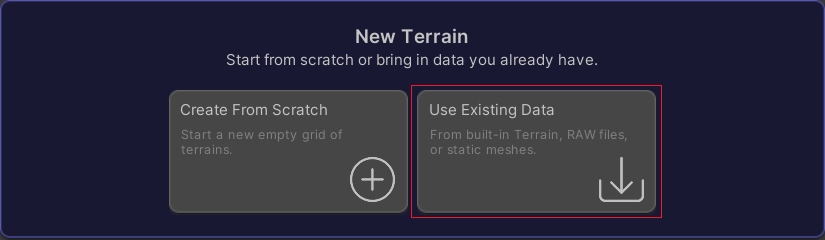
Then choose the Unity Terrain migration path.

Step by step
- Select the source Unity Terrains you want to convert. All Unity Terrains in the scene are added automatically when this page opens.
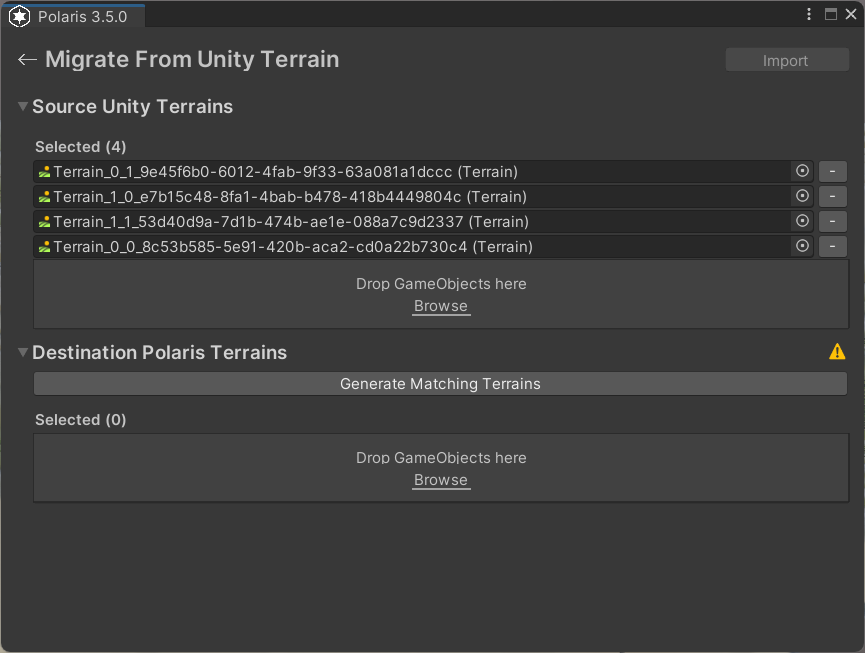
- Select the destination Polaris Terrains. If you have not created any, click Generate Matching Terrains.
- Select which data to import, such as geometry, textures, trees, and grasses.
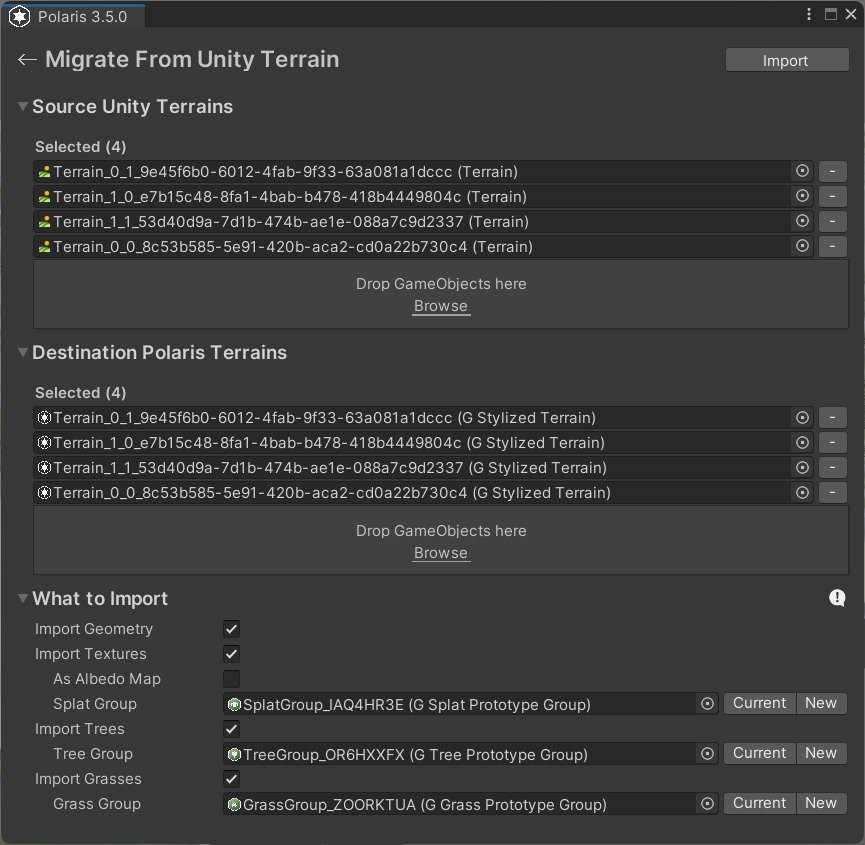
- Review the prototype groups that will be created or overwritten for textures, trees, and grasses.
- Click Import and wait for the conversion to finish.
- Inspect the converted Polaris terrains in the scene before moving on to cleanup and painting.
For trees and grasses, Polaris stores the imported prototypes in group assets. For textures, Polaris uses a splat group when importing texture layers, but not when importing them as a single color map.
These group assets are shared libraries that can be assigned to multiple terrains, so the migration does not duplicate the same setup on every terrain.
You can either reuse an existing group asset or create a new one during migration. If you reuse an existing group, Polaris will overwrite its contents with the imported data.
Next step
After the migration is complete:
Immediate cleanup
- Hide the original Unity Terrains so they are not rendered on top of the Polaris result
- Add paint tools and start cleanup work
- Swap imported prototype assets if you want a more stylized low poly look