Geometry & texture painter
This tool is used to sculpt geometry and apply color, textures onto the terrain surface. Go to GameObject>3D Object>Polaris>Tools>Geometry - Texture Painter to create one.
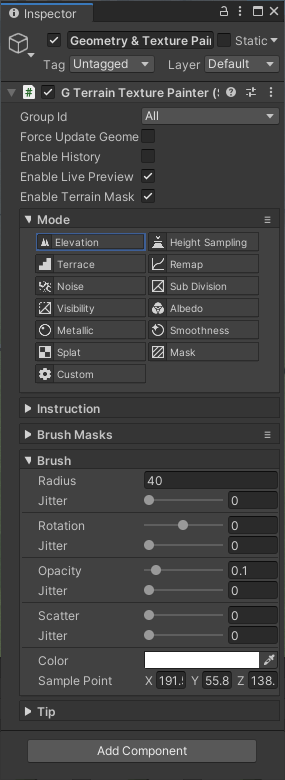
The tool consists of several painting modes, with similar parameters and mainly processing on terrain data type of texture such as height map, splat map, etc.
- Elevation: Raise, lower or smooth height map.
- Height Sampling: set height map value to match a pre-sampled point.
- Terrace: create step effect on height map.
- Remap: remap height map value using a curve.
- Noise: add small detail to the height map.
- Sub Division: adding more resolution to a particular region on the surface.
- Visibility: mark a particular area on the surface as visible or not, useful when making a cave entrance.
- Albedo: paint color on Albedo Map.
- Metallic: paint on the Metallic Map R channel.
- Smoothness: paint on the Metallic Map A channel.
- Splat: paint blend weight on Splat Control Maps.
- Mask: paint on mask texture.
- Custom: other custom functionalities, defined by user code.
Each paint mode will have different actions and hotkeys to use, see the Instruction section in the Inspector for more detail.
These paint modes have some similar parameters:
- Force Update Geometry: force the terrain to update its geometry even when the painter doesn’t modify its height map, useful when you want to convert texture data to mesh data, such as from albedo map color to vertex color.
- Enable History: determine whether to store a history entry for undo when painting.
- Enable Live Preview: let you see a preview of the painter's effect on the terrain. This option will use more resources on your computer.
- Enable Terrain Mask: use mask texture R channel to lock particular regions of the terrain from being modified.
- Brush Mask: a texture to define the stroke shape.
- Splat: determine which splat prototype to paint. Only visible in Splat & Custom mode. See Create Splat Prototypes Group for more detail.
- Radius: radius of the brush.
- Rotation: rotation of the brush.
- Opacity: strength to apply operations.
- Scatter: randomize brush position by an offset.
- Jitter: control brush stroke randomness.
- Color: color of the brush.
- Sample Point: the pre-sample point when in Height Sampling mode.
When the Scene View is focused, you can use the minus/plus, square brackets, semicolon/quote button to gradually change brush radius, rotation and opacity, respectively.
To add a custom brush mask, simply put your texture into the Assets/.../Resources/PolarisBrushes directory, then disable-enable the painter component for the brushes to be reloaded.
Important: Sometimes the result doesn’t show up when painting, this is caused mainly by incorrect material setup, where the material doesn’t use the texture which the painter is working on. For example: painting splat on a gradient lookup material doesn’t show anything.
Below are the list of paint mode and the texture they work on:
| Height Map | Albedo Map | Metallic Map | Splat Control Maps | Mask Map | |
|---|---|---|---|---|---|
| Elevation | RG | ||||
| Height Sampling | RG | ||||
| Terrace | RG | ||||
| Remap | RG | ||||
| Noise | RG | ||||
| Sub Division | B | ||||
| Visibility | A | ||||
| Albedo | RGBA | ||||
| Metallic | R | ||||
| Smoothness | A | ||||
| Splats | RGBA | ||||
| Mask | RGBA |