Texture creator
Texture Creator is an intuitive way to create and author terrain textures, as well as advanced masking. Go to Window>Polaris>Tools>Texture Creator to open the window.
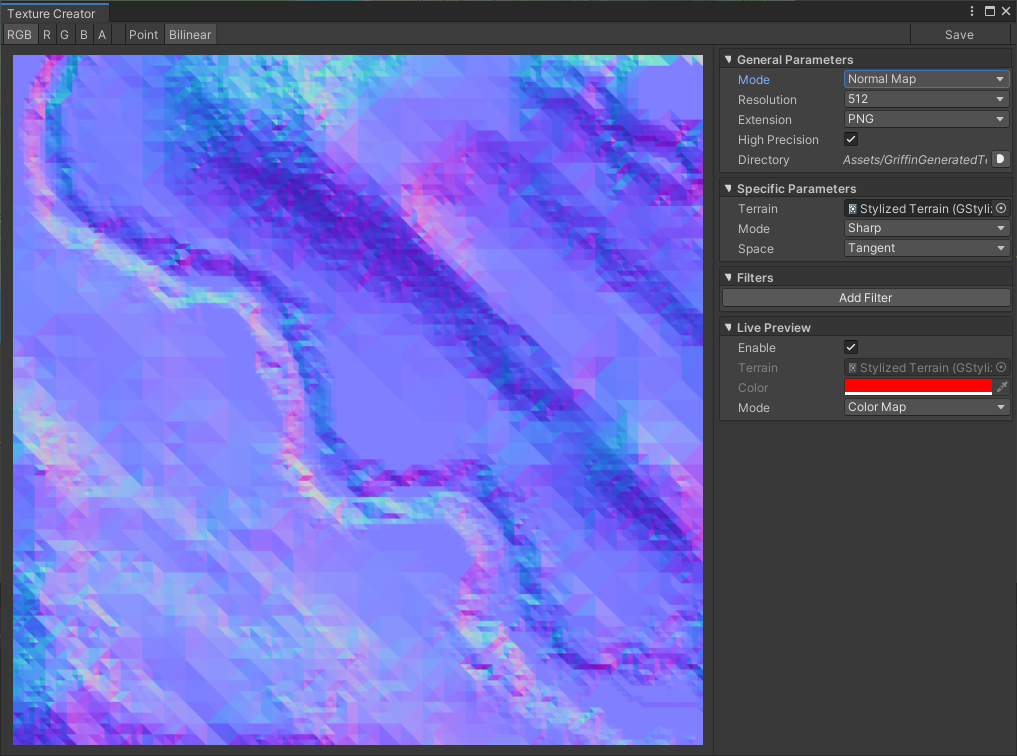
Toolbar
The toolbar is on top of the window, where you can toggle between view mode and save the texture to asset.
- RGB/R/G/B/A: Toggle between full color or per channel view.
- Point/Bilinear: Toggle between point or bilinear filter mode.
- Save: Save the texture to asset.
General Parameters
This section determines generation mode and some properties which are shared between modes.
- Mode: Which kind of texture to generate, this will be described more later.
- Resolution: Size of the texture.
- Extension: Image file extension to save to asset (PNG, JPG, EXR, TGA)
- High Precision: Determine whether to use floating point (HDR) texture or not, should be enabled for generating height map, mask and normal map, which contains non-color data.
- Directory: The location to save the image.
Specific Parameters
This section displays properties which are specific to each generation mode.
Height Map
Extract elevation data from a terrain.
- Terrain: The terrain to extract its height map, elevation (RG channel) only, sub-division and visibility are ignored.
- Real Geometry: Check to extract a sharp edged height map.
Height Map From Mesh
Generate a height map using custom mesh, useful for stamper mask, or third-parties’ terrain meshes.
- Mesh: The mesh to extract from.
- Offset: Position of the mesh related to the camera.
- Rotation: Rotation of the mesh.
- Scale: Scale of the mesh.
- Depth: Control the strength of the grayscale range.
- Fit Camera: fit the mesh to the texture automatically.
Normal Map
Extract a normal map from terrain geometry or height map.
- Terrain: The terrain to extract.
- Mode: Choose between Sharp, Interpolated or Per-Pixel normal map.
- Space: Choose between Local or Tangent space.
Steepness Map
Extract slope steepness data from a terrain.
- Terrain: The terrain to extract.
- Mode: Choose between Sharp, Interpolated or Per-Pixel normal vectors.
Noise Map
Generate a noise map, useful for adding fine detail to your terrain or use as a height map.
- Type: The noise type, Perlin, Ridged, Voronoi, etc.
- Origin: Offset the noise coordinate.
- Frequency: Determine size of noise detail, higher frequency produce smaller detail.
- Lacunarity: Determine the increment of frequency of each layer/octave.
- Persistence: Determine the decrement of amplitude of each layer/octave.
- Octaves: Number of noise layers added on top of each other.
- Seed: A random seed.
Color Map
Generate a color map from splat data, known as Base Map, or Mega Texture.
- Terrain: The terrain to extract.
Blend Map
Perform some basic texture blending operation for masking. Click on Add Layer to add a new blend layer. For each layer:
- Source: Blend data source, from a Texture, or a constant Number, or a Vector.
- Texture: The texture to blend.
- Number: The constant number to blend.
- Vector: The vector to blend.
- Operation: The operation to apply.
- Factor: The factor to interpolate between 2 layers, in Lerp mode.
- Mask: The mask to interpolate between 2 layers, in Lerp mode.
Foliage Distribution Map
Extract a distribution map from trees and grasses.
- Terrain: The terrain to extract.
- Brush: Brush texture to paint at each location.
- Opacity: Brush opacity.
- Size: Size of the brush, in normalized space.
- Rotation Min/Max: Rotation of the brush.
- Trees: Tree prototypes to extract.
- Grasses: Grass prototypes to extract.
Filters
This section contains a stack of image filters for manipulating the generated textures. The stack is applied top to bottom, each layer can be ignored by unchecking the Enable box. Click Add Filter to add a layer.
Curve
Remap color data using curves.
- Master: The master curve, apply after remapping each channel.
- Red/Green/Blue/Alpha: Remap value on each channel.
Blur
Apply a Gaussian blur effect. This filter is expensive.
- Radius: The blur radius.
Invert
Invert the color on each channel (1-value).
- Red/Green/Blue/Alpha: Invert each channel, selectively.
Step
Apply a value stepping/snapping effect, useful for creating a terraced heightmap, for example.
- Count: The number of steps.
Warp
Apply a normal map based image warping.
- Mask: The normal map to use.
- Is Normal Map: Is the mask already a normal map? Uncheck to use a grayscale image.
- Strength: Strength of the effect.
Live Preview
This section controls Live Preview in the scene view.
- Enable: Toggle Live Preview on/off.
- Terrain: The terrain to apply the texture on, will be picked automatically in some modes.
- Color: Color of the mask in Mask mode.
- Mode: Render mode, Mask, Color Map or Geometry.
Texture Importing
Saved textures are imported using the default importer, which is considered as a color texture. For specific usage, such as normal map or height map, you have to adjust the importer manually.
The recommended format for height maps and masks is R16.