Spline creator
Spline Creator is a handy tool to perform some specific operations along a spline like making ramps, painting paths or spawning trees, etc.
To add a Spline Creator into your scene, go to GameObject>3D Object>Polaris>Spline Tool.
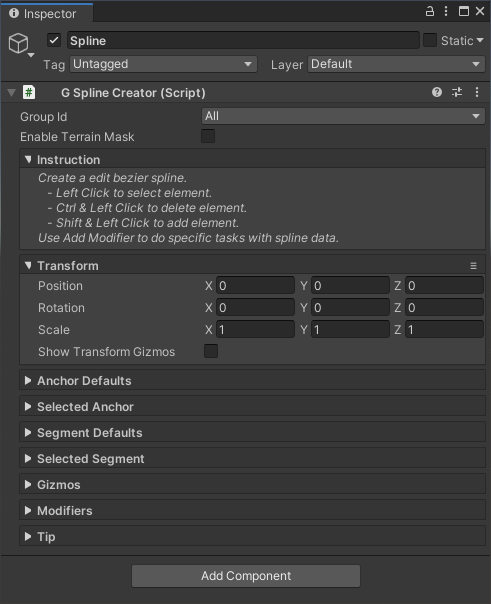
The spline holds a list of anchor points where it goes through and some segments to connect their anchors. There are some actions when working with spline:
- Left Click: select an Anchor or Segment
- Shift Click: Add a new Anchor, this anchor will be automatically connected to the selected one and may create a new branch.
- Shift Click between 2 anchors: connect 2 anchors.
- Ctrl Click: remove an Anchor or Segment.
- Ctrl Click on the dotted line: snap the Anchor onto the surface.
Each anchor has its own position, rotation and scale. You can modify these information the same way when working with Game Object (using the transform tool in the scene view, use WER to switch between modes). If you want an exact value, use the properties listed under the Selected Anchor section in the Inspector.
Spline tangents are per-segment basis, since it supports branching. Select a segment and move its tangents to bend the spline. If you want an exact value, use the properties listed under the Selected Segment section in the Inspector.
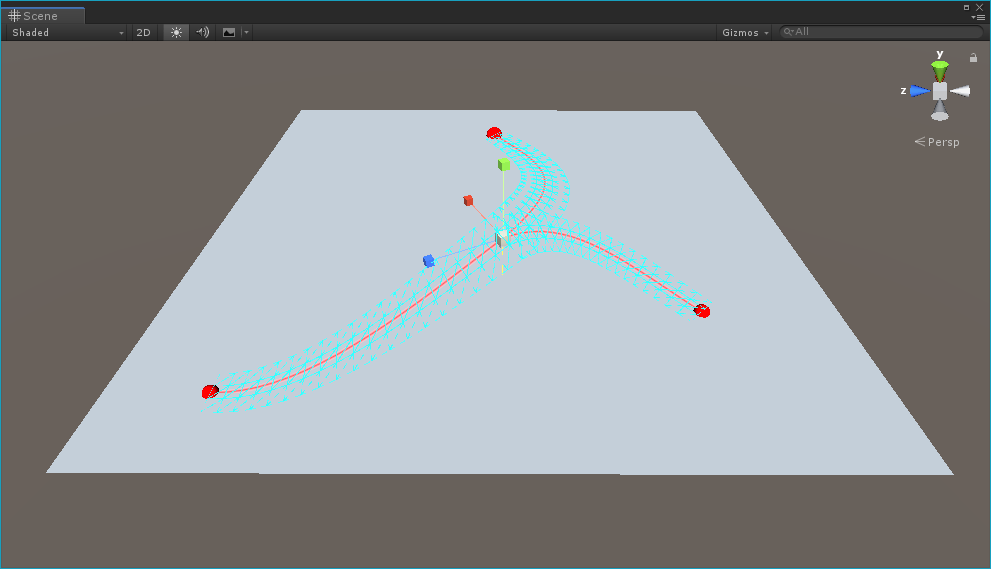
Detail for each property in the Inspector:
For Transform:
- Position/Rotation/Scale: transformation of the Spline object itself.
- Show Transform Gizmos: show gizmos to translate, rotate or resize the whole spline.
For Anchor Defaults:
- Position Offset: an offset to add to the anchor position when it is created, something like “create a new anchor at 1 meter above the ground”.
- Initial Rotation: rotation of the anchor when it is created.
- Initial Scale: scale of the anchor when it is created.
For Selected Anchor:
- Position: position of the anchor in spline local space.
- Rotation: rotation of the anchor in spline local space.
- Scale: scale of the anchor in spline local space.
For Selected Segment:
- Start Tangent: position of the first tangent in spline local space.
- End Tangent: position of the second tangent in spline local space.
For Gizmos:
- Show Mesh: determine whether to visualize the spline mesh in the Scene view or not.
The Spline Creator is only responsible for creating the base spline. To apply an operation based on that spline, you have to add a Spline Modifier, by click on Add Modifier:
- Ramp Maker: making a ramp by modifying terrain Height map.
- Path Painter: making a path by painting on Albedo or Splat map.
- Foliage Spawner: spawn trees and grasses along the path.
- Foliage Remover: clear trees and grasses along the path.
- Object Spawner: spawn prefab instances along the path.
- Object Remover: remove prefab instances along the path.
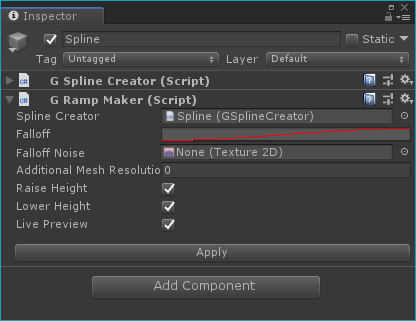
A special thing about this tool is that it allows you to see the result before applying to the terrain, minimizing the trial-and-error process.
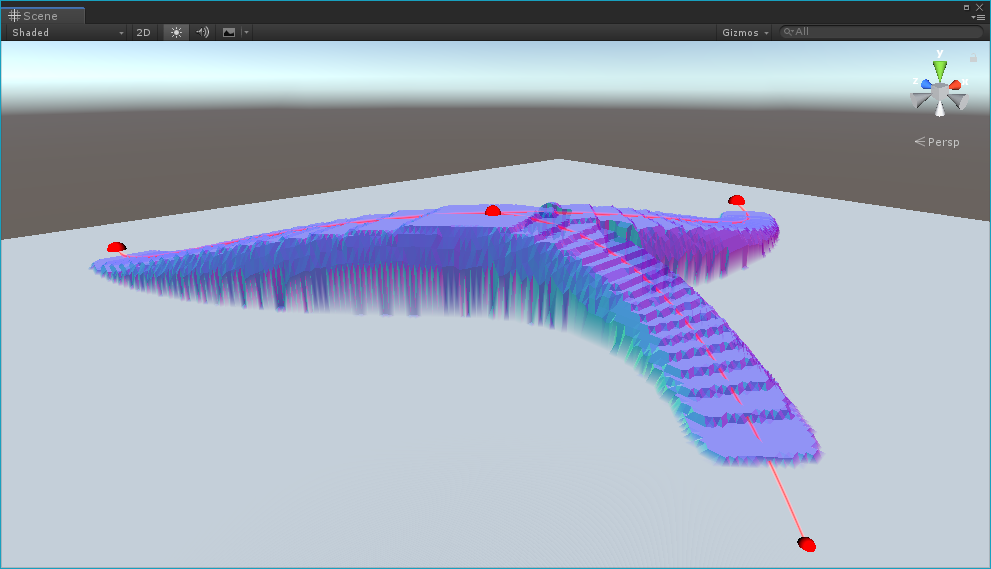
Explore the parameters to see how it works. Once you’re happy with it, hit Apply and done!