Backup tool
Backup Tool provides a robust, non-linear way to store/restore editing history. To open the editor, go to Window>Polaris>Tools>Backup.
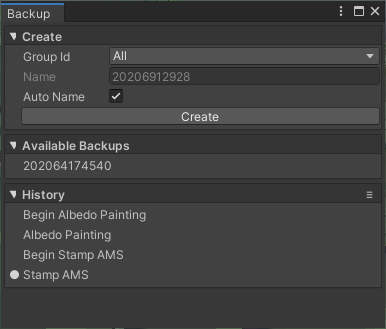
There are 2 types of backup:
- Long Lives Backup: terrains in the selected group will be fully backed up and stored on disk, which means everything from textures to foliage will be scanned, and the entry remain across editor session, or transfer via network. This type is created manually by the user.
- Short Lives History: terrains in the selected group will be partially backed up and stored in memory. This type is created automatically by the tool, only the data channel affected by the tool will be backed up, and will NOT remain between editor sessions.
To restore a backup, simply click on the listed entry. For additional action like deleting the entry, right click on it. The small dot (●) indicates the last active Backup/History entry.
You can press Ctrl+Z and Ctrl+Y to perform restoring a backup like a regular Undo/Redo.
Backup data is stored in Project Folder/GriffinBackup directory (the same level as Assets/).